Use the sandbox
A step-by-step guide to trying Ladderly with sample students, with built-in tutorials for common tasks.
The sandbox is a private copy of Ladderly filled with sample students. Use it to practice referrals, progress monitoring, and incident reports without touching your school's real data.
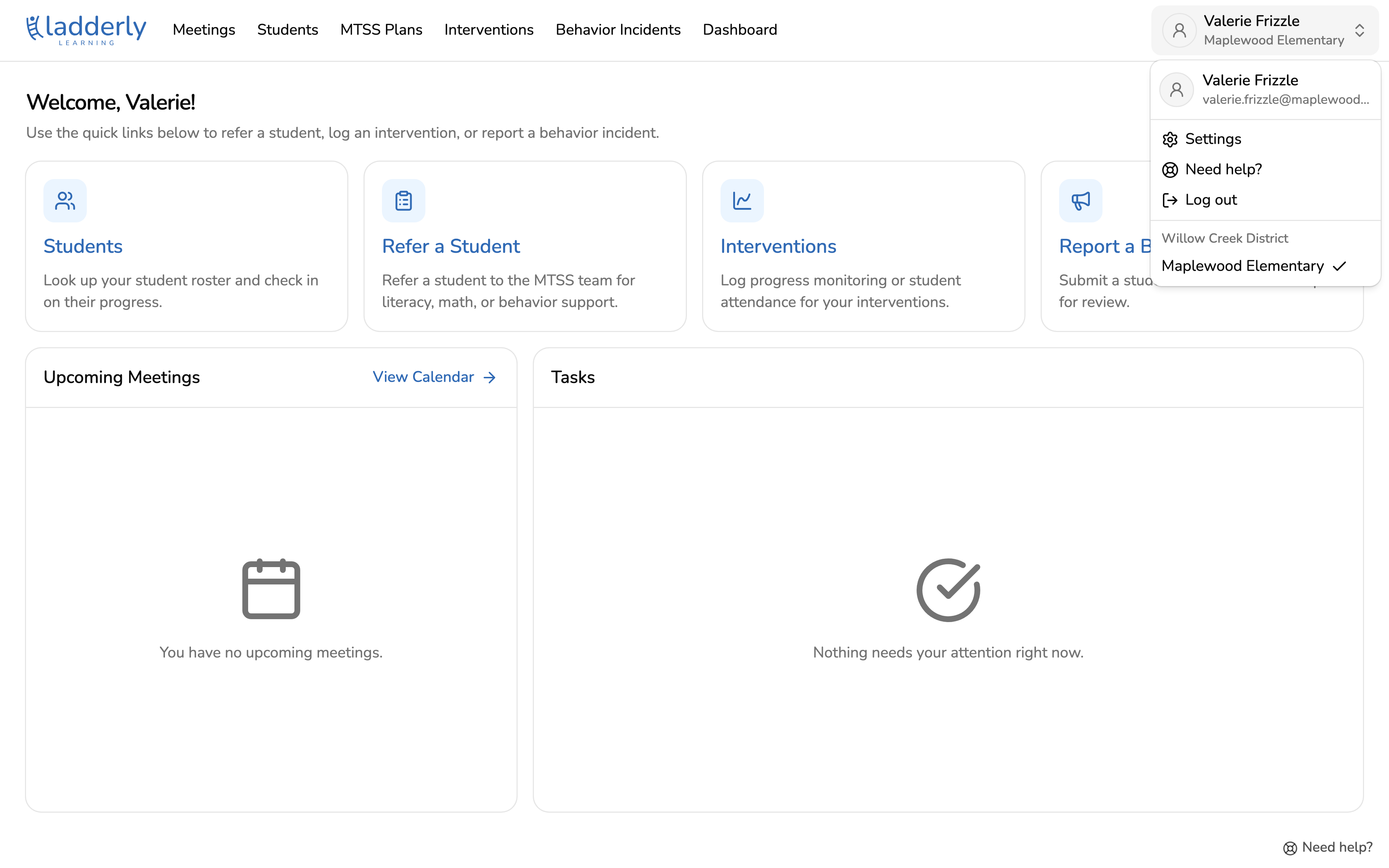
1. Open your account menu
From the home screen, choose your name in the top right corner, then choose Settings.
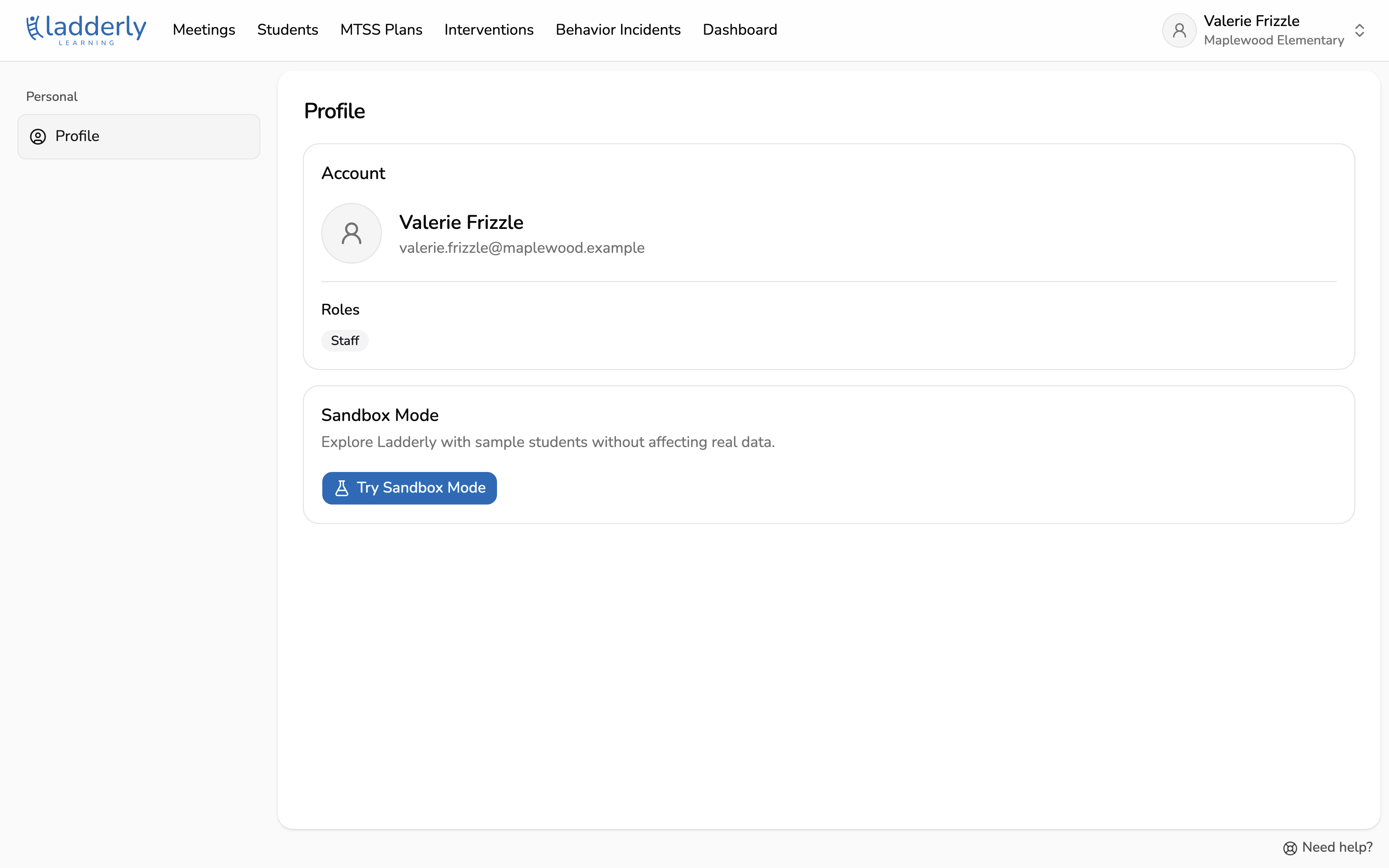
2. Find Sandbox Mode
Scroll to the Sandbox Mode card and choose Try Sandbox Mode.
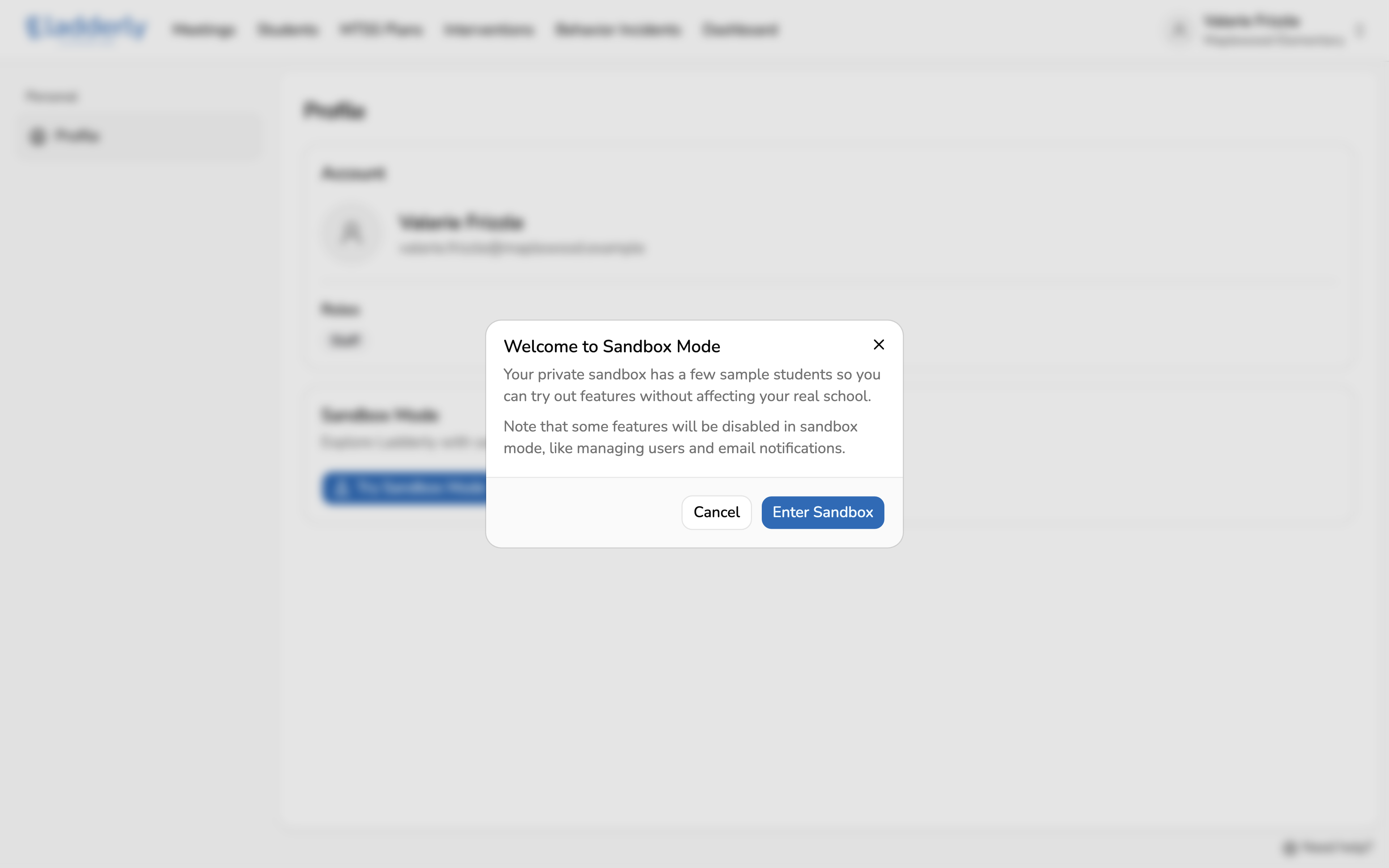
3. Enter the sandbox
Choose Enter Sandbox. Your sandbox is private to you, so nothing you do there shows up for anyone else at your school.
4. Explore with sample students
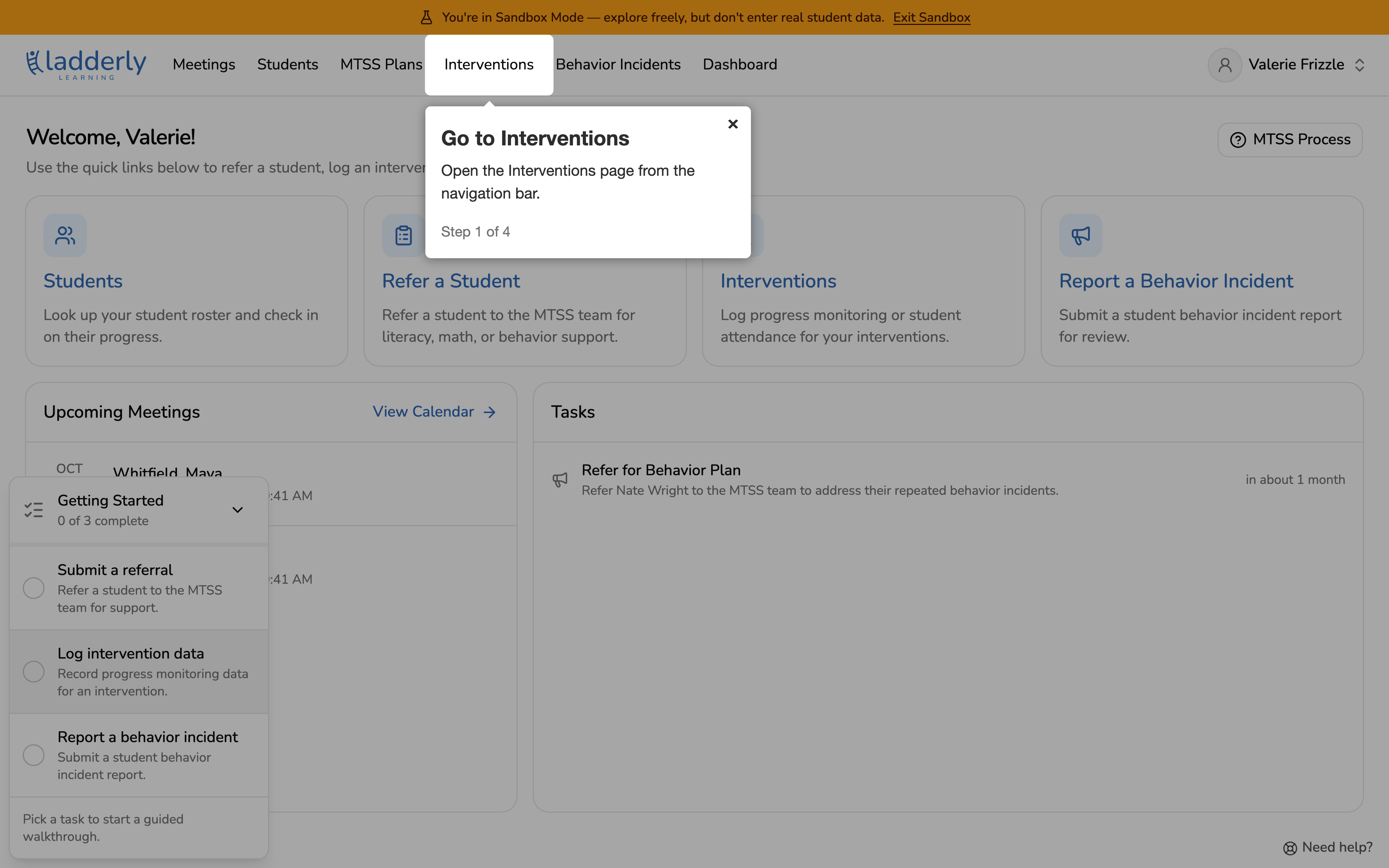
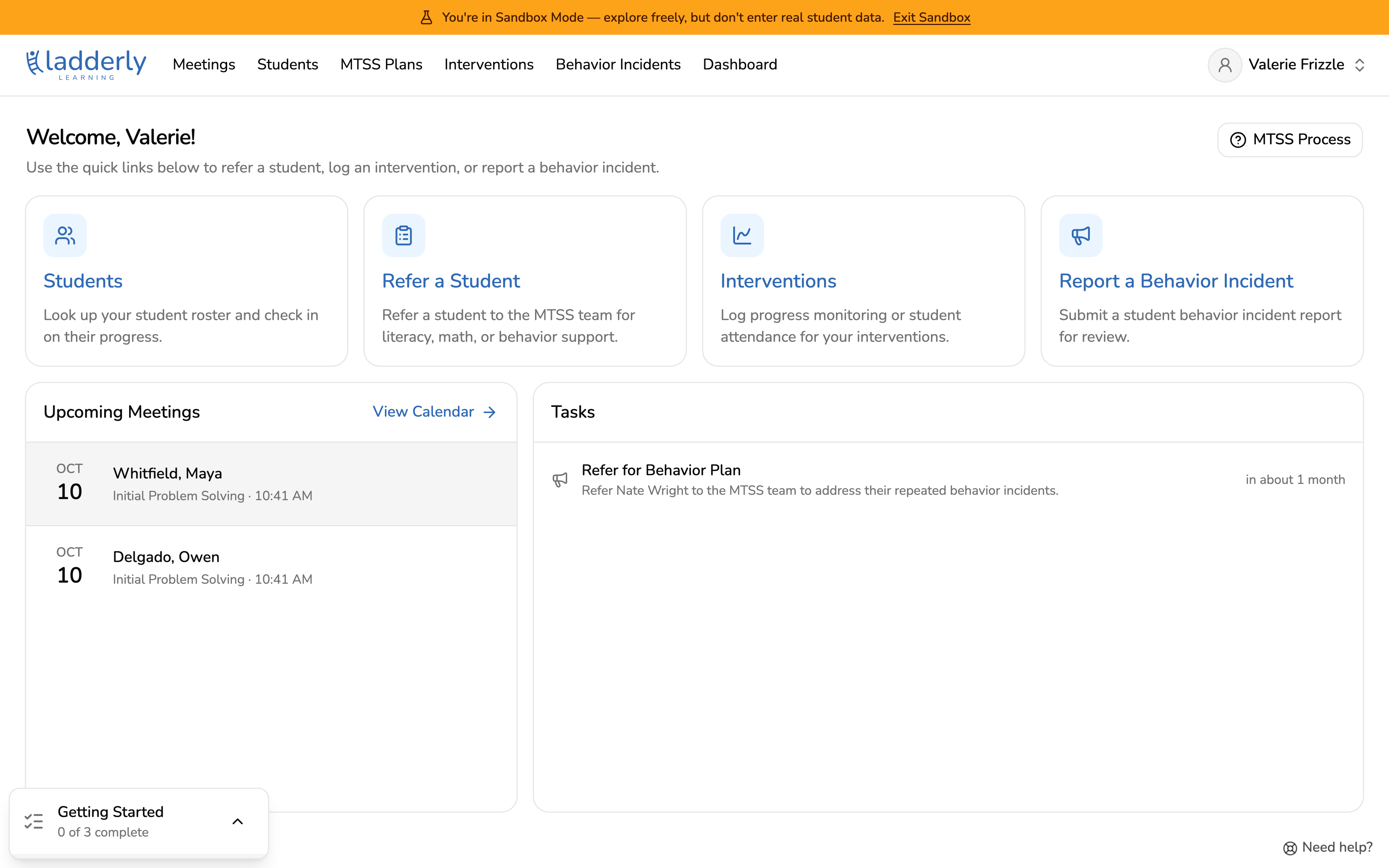
The banner at the top shows you're in the sandbox. Everything works like it does at your school, but with sample students, so feel free to click around. Don't enter real student information here.
When you're done, choose Exit Sandbox in the banner to go back to your school.
5. Find the tutorials
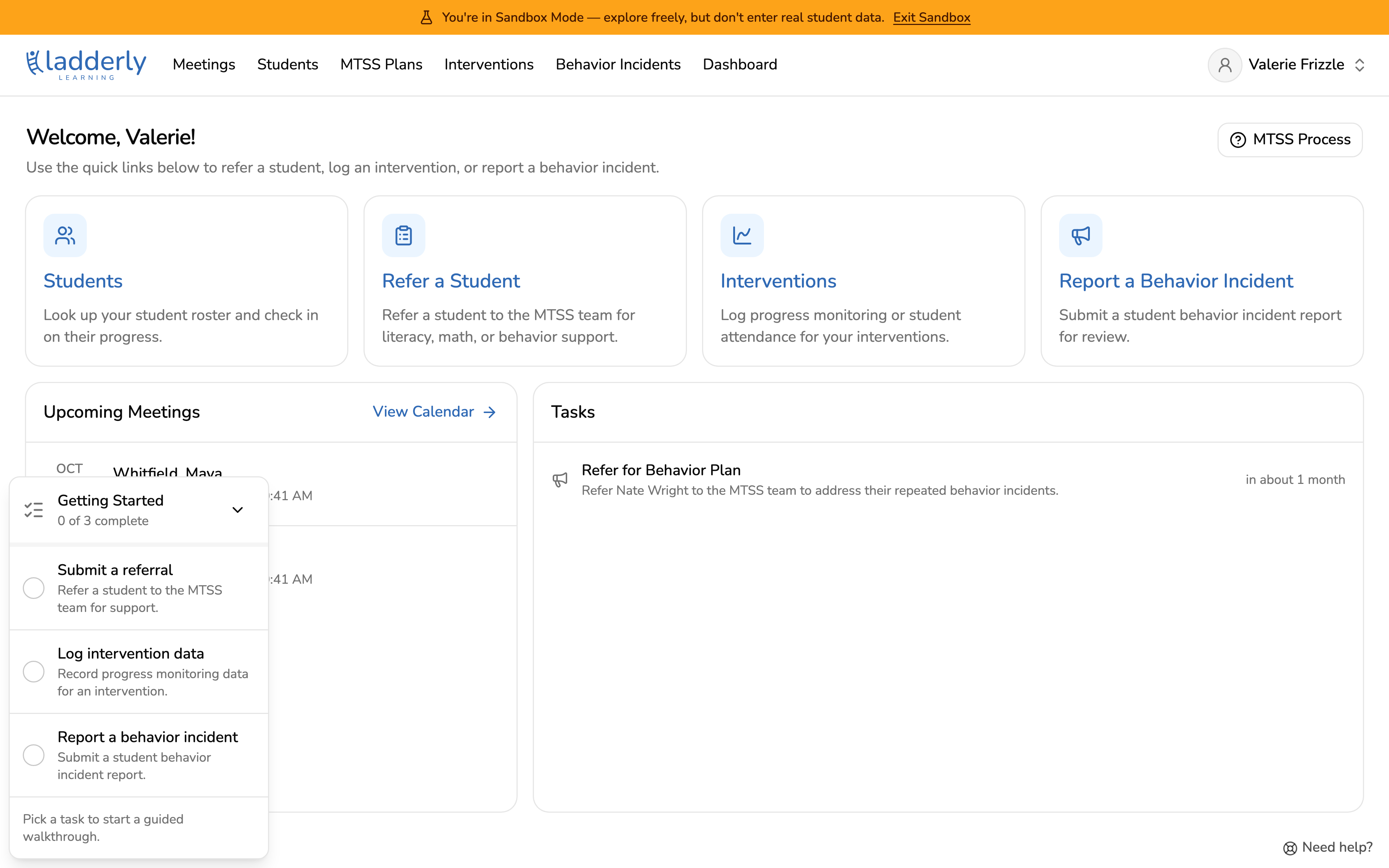
The Getting Started checklist at the bottom right of the page lists tutorials for the tasks you'll do most often: submitting a referral, logging intervention data, and reporting a behavior incident. Each one is checked off as you finish it.
6. Follow a tutorial
Click on a tutorial to start it. Ladderly highlights where to click next and moves to the next step as you go.