Create literacy plans
A step-by-step guide for school admins and MTSS team members to create a K-3 literacy plan for every class at once.
A literacy plan is a templated reading intervention teachers run for the students in their own class who need extra support. A school admin or MTSS team member sets the plan up once as a template, and Ladderly creates a copy for every teacher chosen.
Who can set up literacy plans?
Only users with the School Admin or MTSS Team Member role can create literacy plans. If you don't see Literacy Plans in your settings, ask a school admin or MTSS team member to set them up.
1. Open your account menu
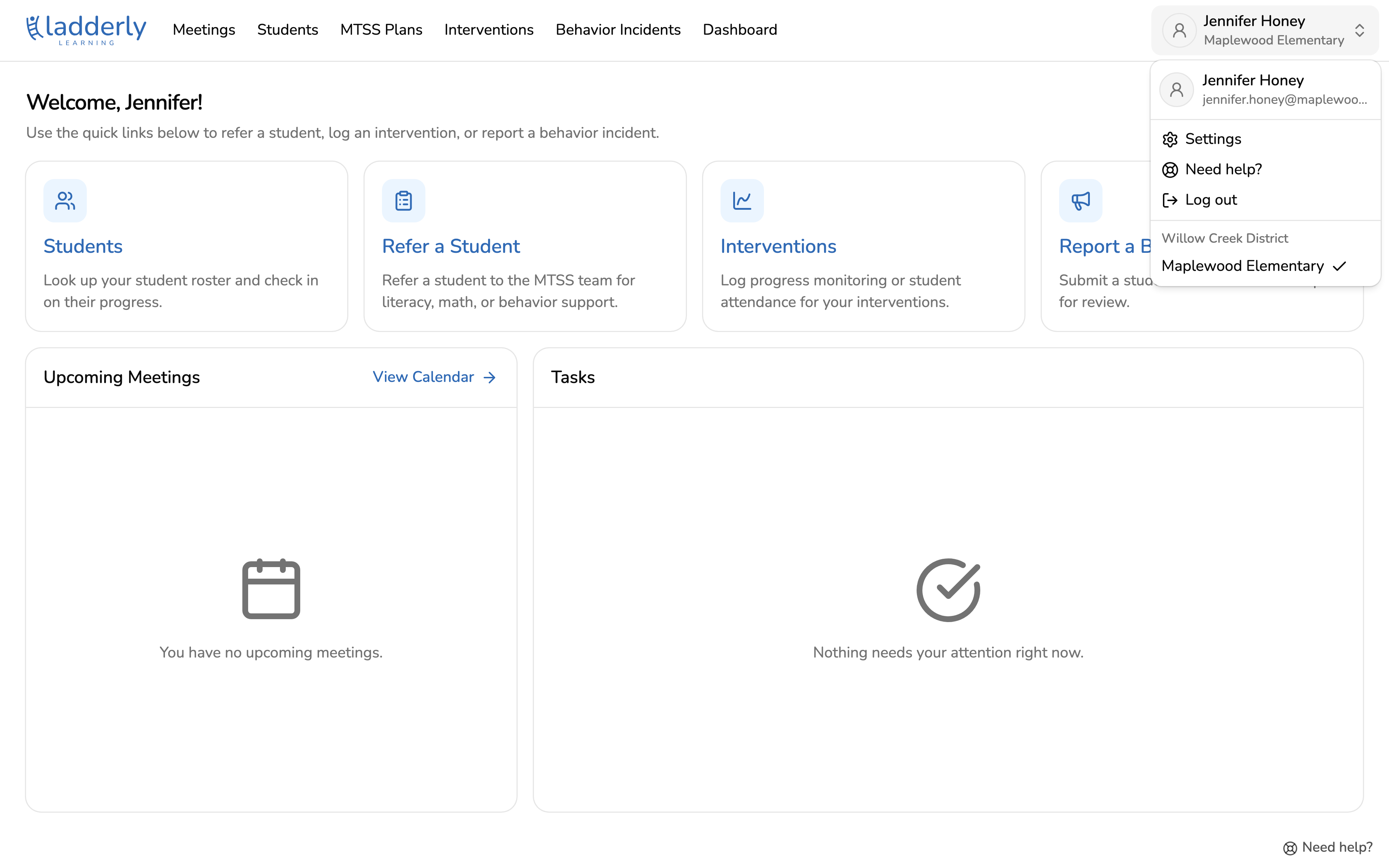
Start from the home screen, choose your name in the top right corner, then choose Settings.
2. Go to Literacy Plans
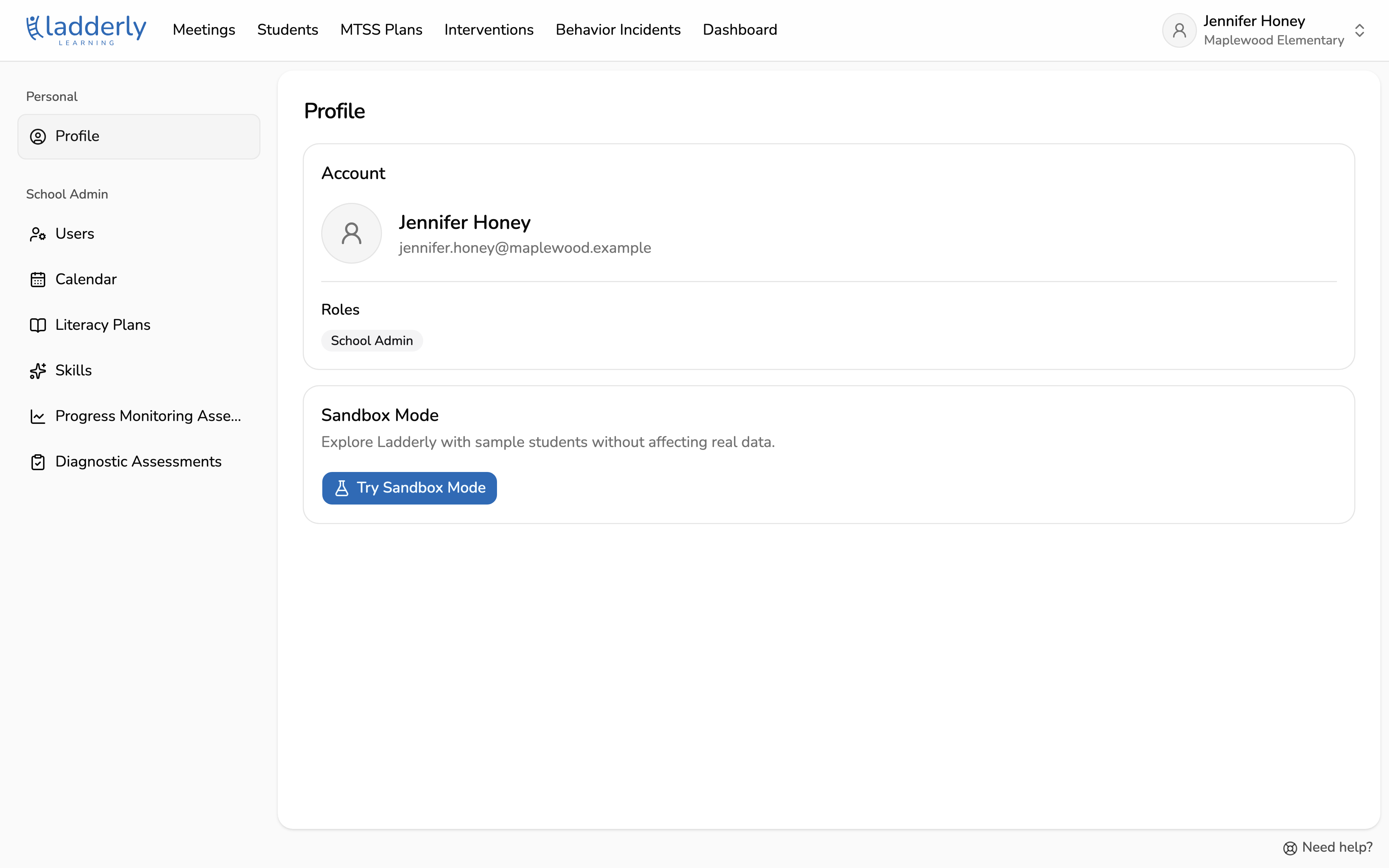
Under the School Admin section in the settings menu on the left, choose Literacy Plans.
3. Start a new plan
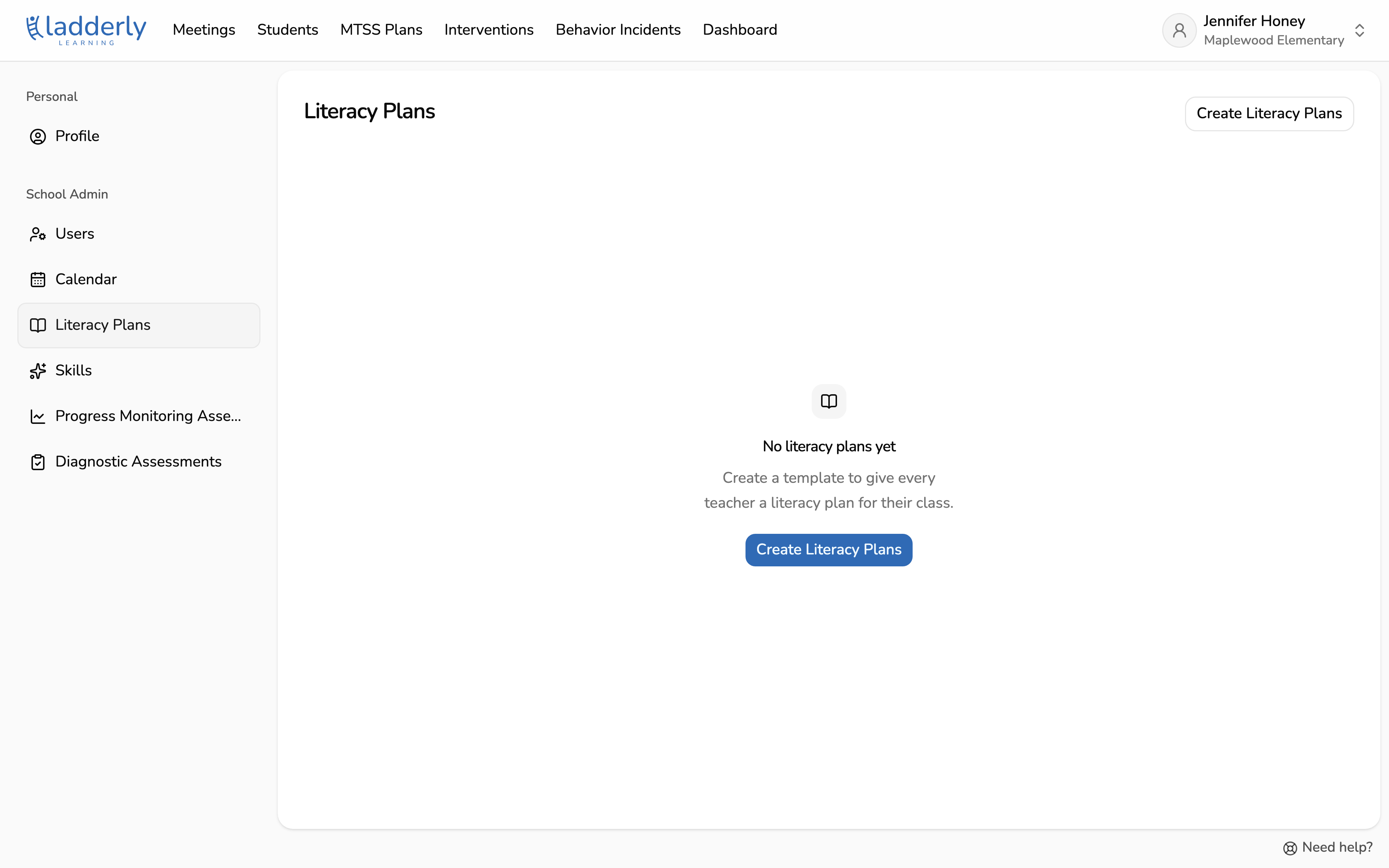
This page lists every literacy plan at your school. Choose Create Literacy Plans to start a new template.
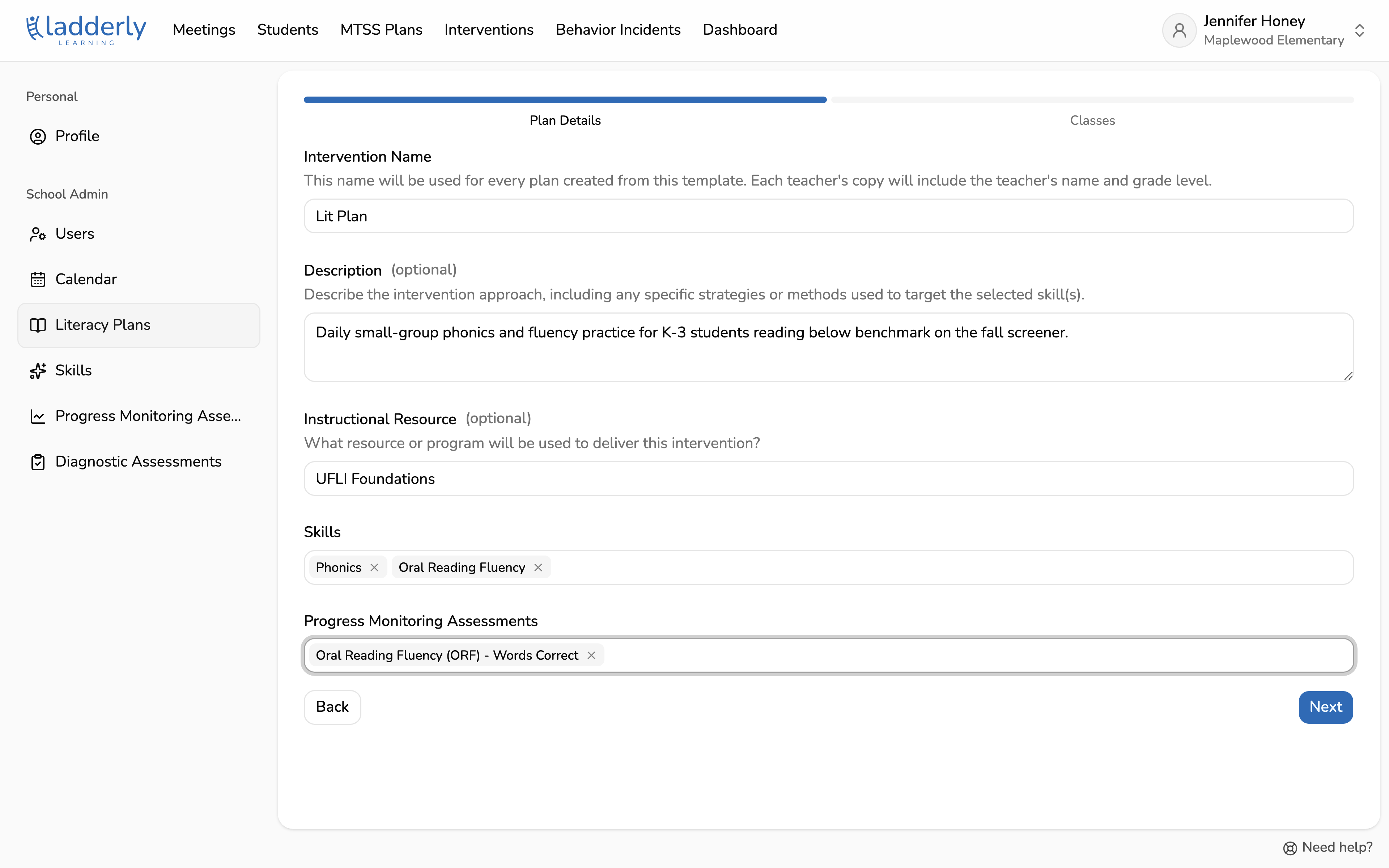
4. Fill in the plan details
These details are shared by every teacher's copy of the plan. Each copy is named with the plan name plus the teacher's name and grade, so keep the name short.
Pick the skills the plan targets and the progress monitoring assessment teachers will give. Choose Next when you're done.
5. Choose the classes
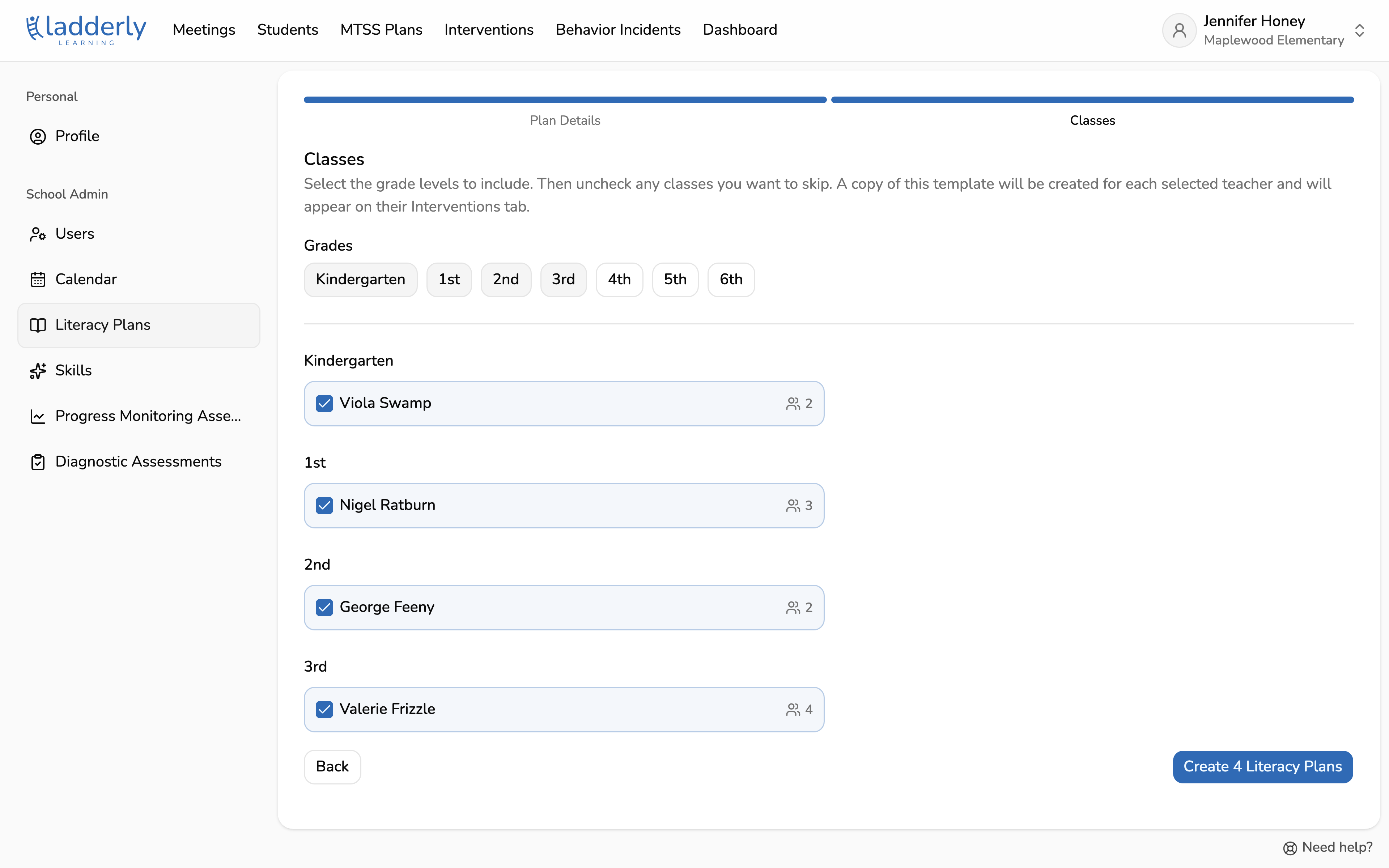
Ladderly builds a class for each teacher and grade from your roster. Kindergarten through 3rd grade are selected to start; toggle a grade to add or remove its classes, and uncheck any class you want to skip.
Choose Create Literacy Plans to create one plan per checked class.
6. Review the plans
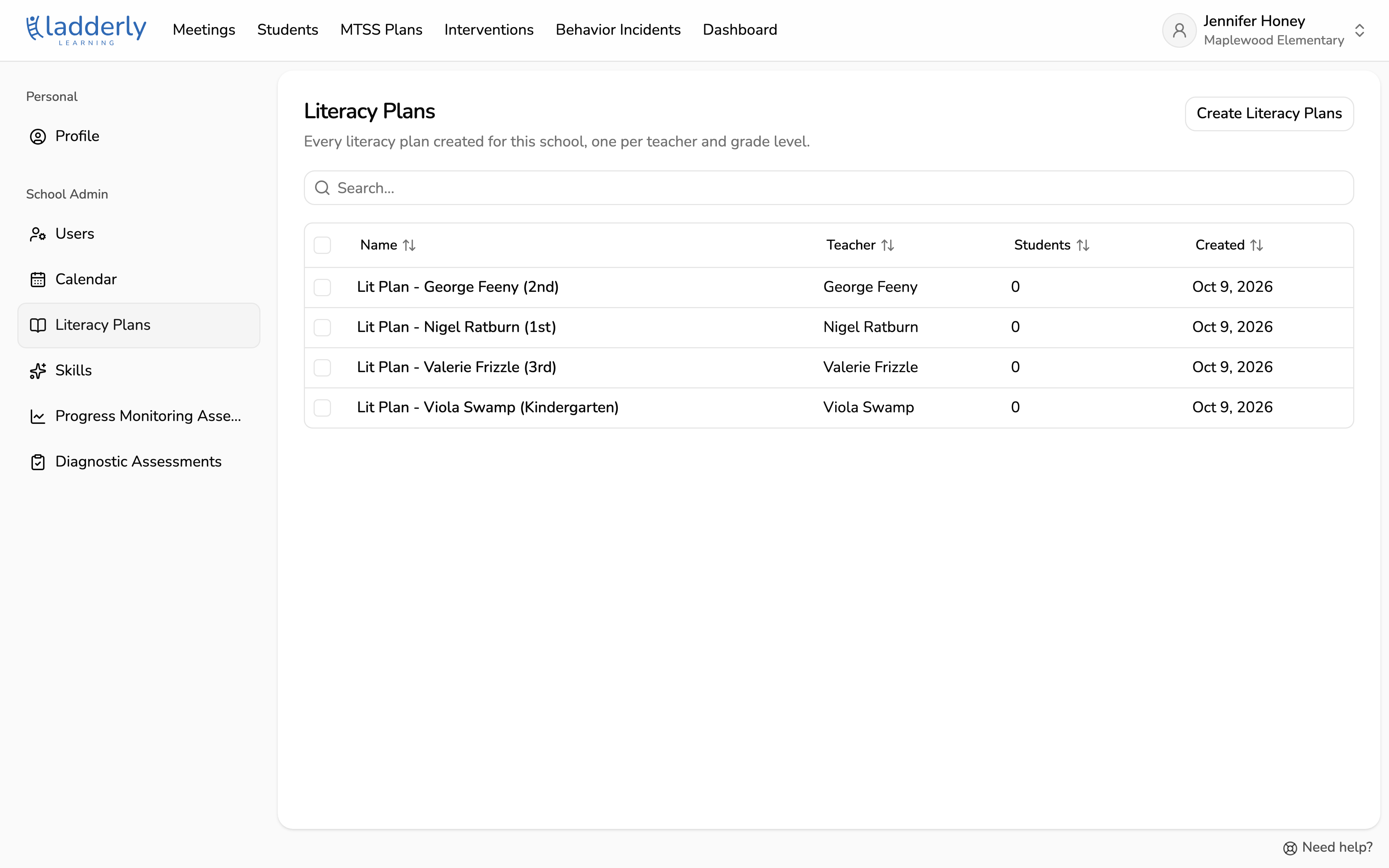
Every literacy plan at your school is listed here with its teacher and number of students. Each plan also shows up on its teacher's Interventions page.
What happens next?
Each teacher adds the students who need the plan and prints consent letters for their families. Share the Fill out your literacy plan guide with your teachers.