Schedule a diagnostic screener
A step-by-step guide for MTSS team members to schedule and log a diagnostic screener.
Once a referral is open, a diagnostic screener narrows down why a student is struggling. Scheduling it books a follow-up meeting to look at the results together.
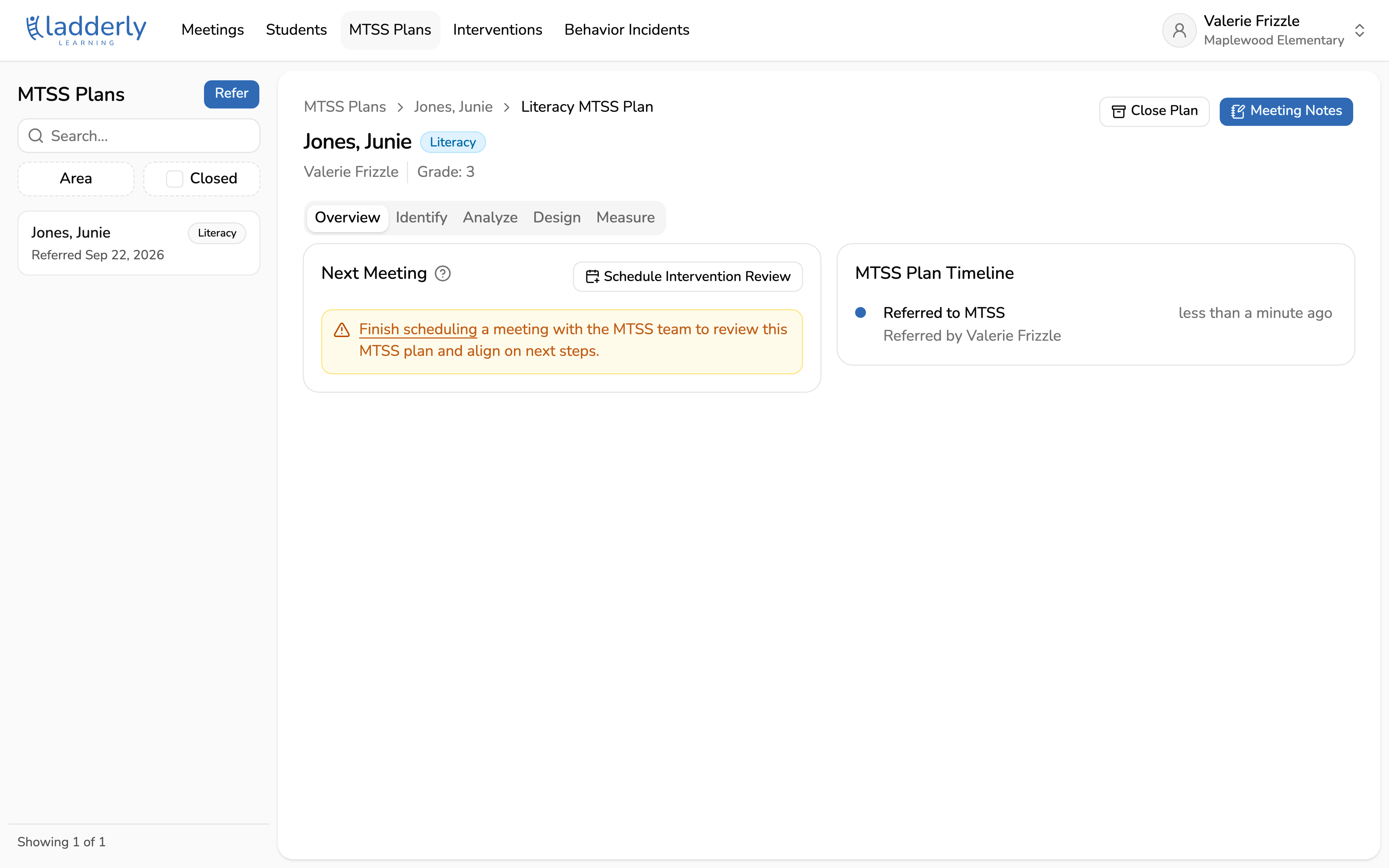
1. Open the MTSS plan
Every referral becomes an MTSS plan. The tabs follow the MTSS process: Identify what is happening, Analyze why, Design what to do about it, Measure whether it worked.
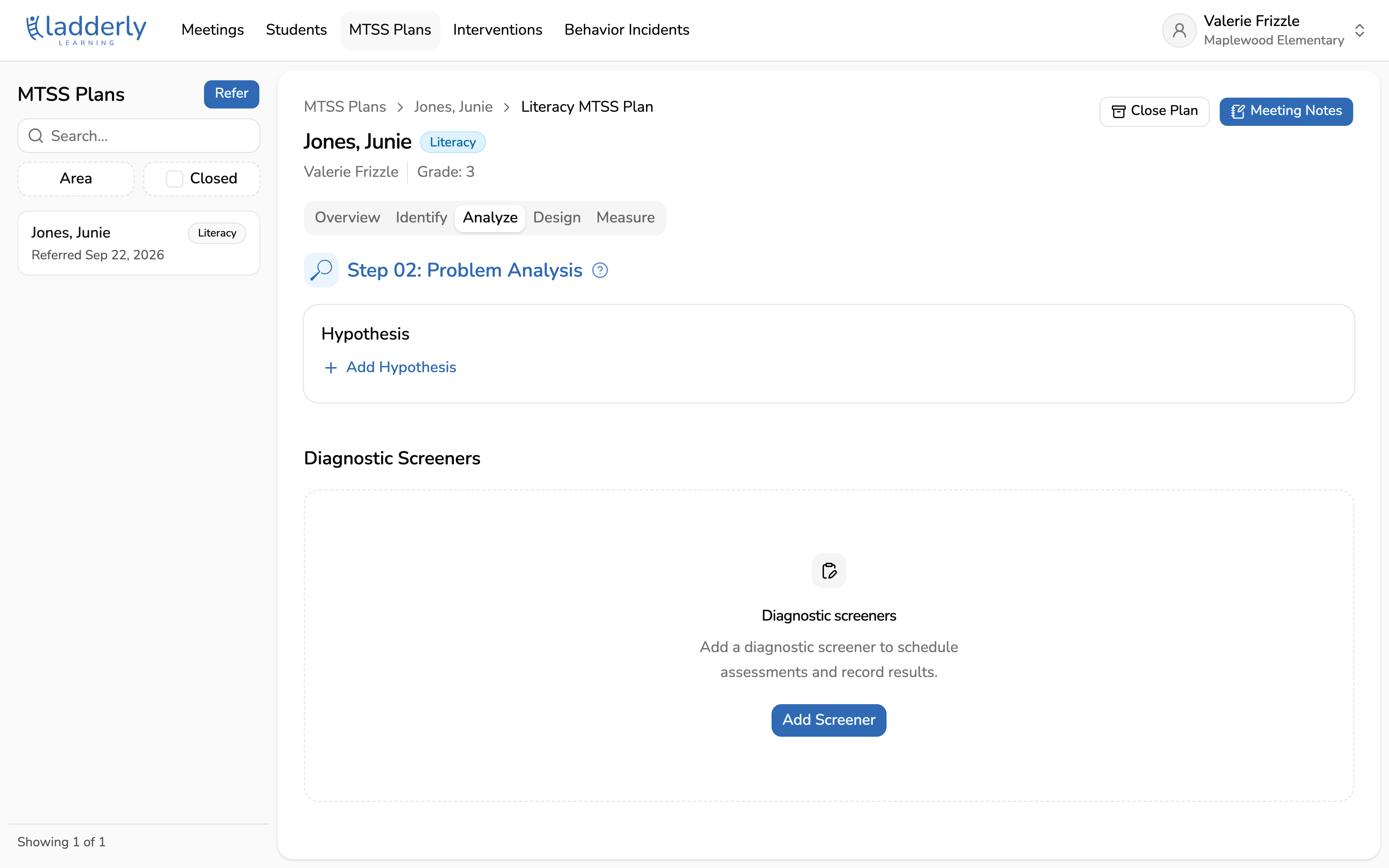
2. Add a screener from the Analyze tab
The Analyze tab is where diagnostic data lives. Choose Add Screener to schedule one for this student.
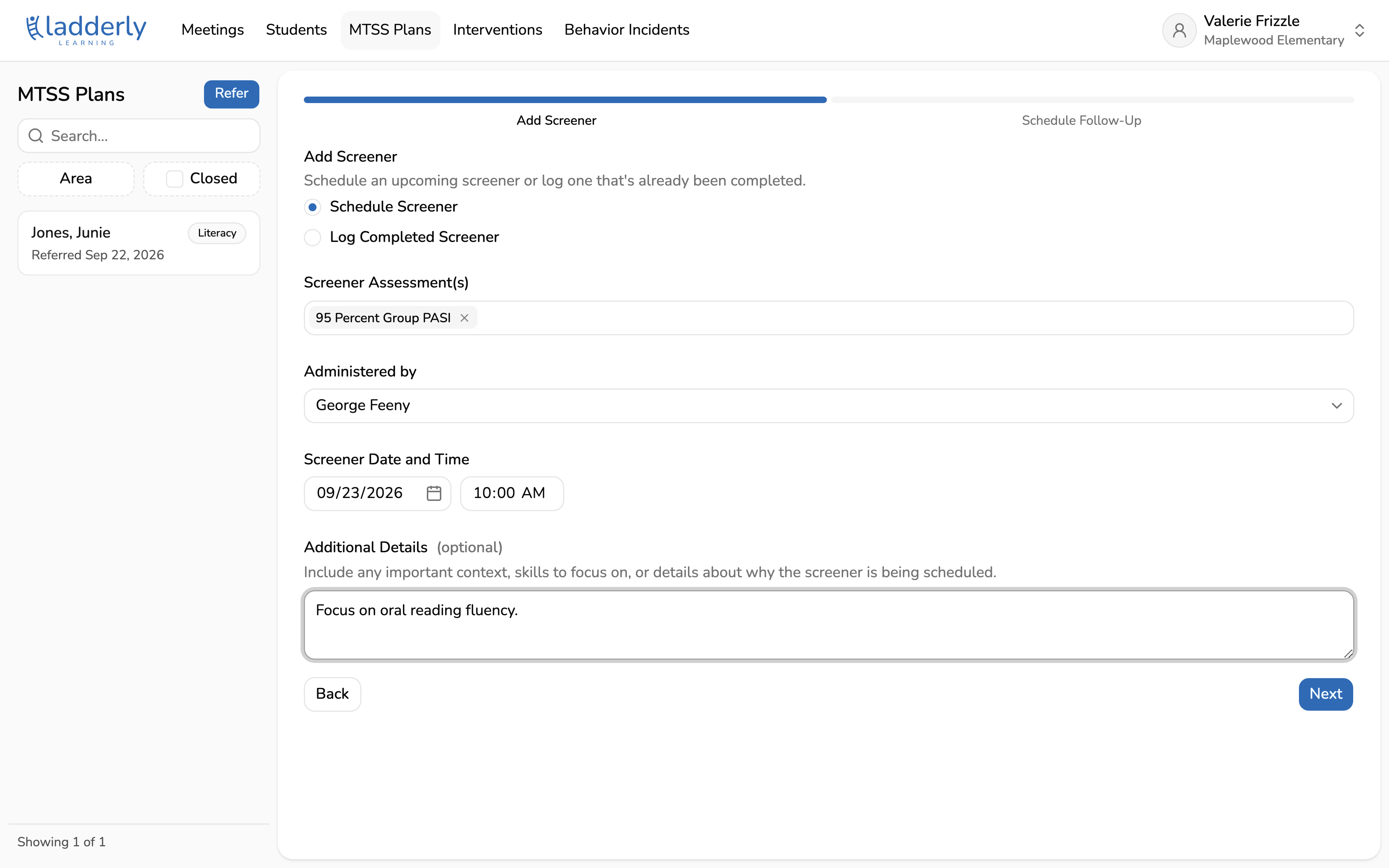
3. Choose the assessment
Pick which screener to run and who will administer it. These come from your school's assessment list, managed by school admins in Settings.
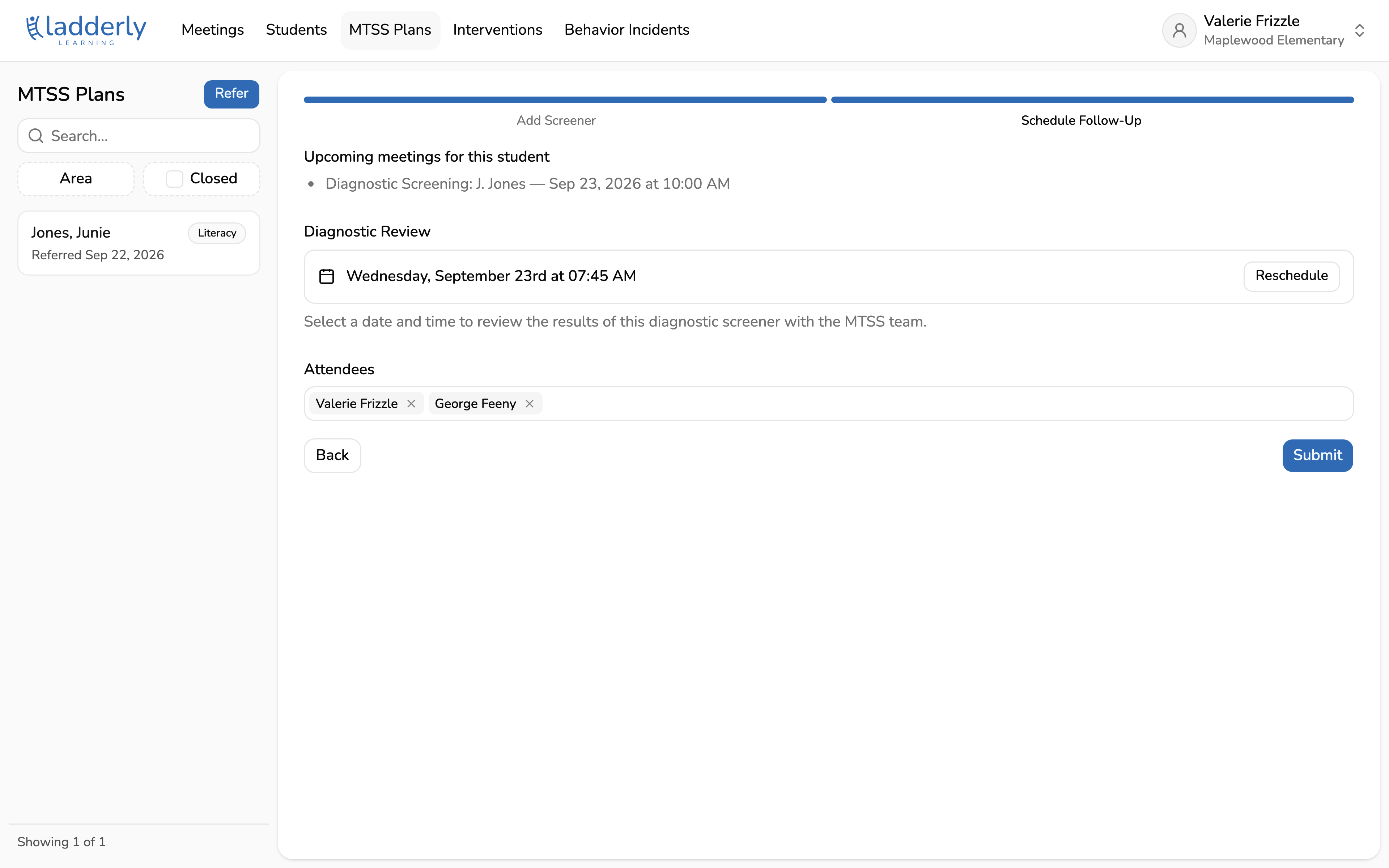
4. Book the results review
Set the date the team will come back and look at what the screener found. Booking it now is what turns a scheduled screener into an entry on the team's calendar.
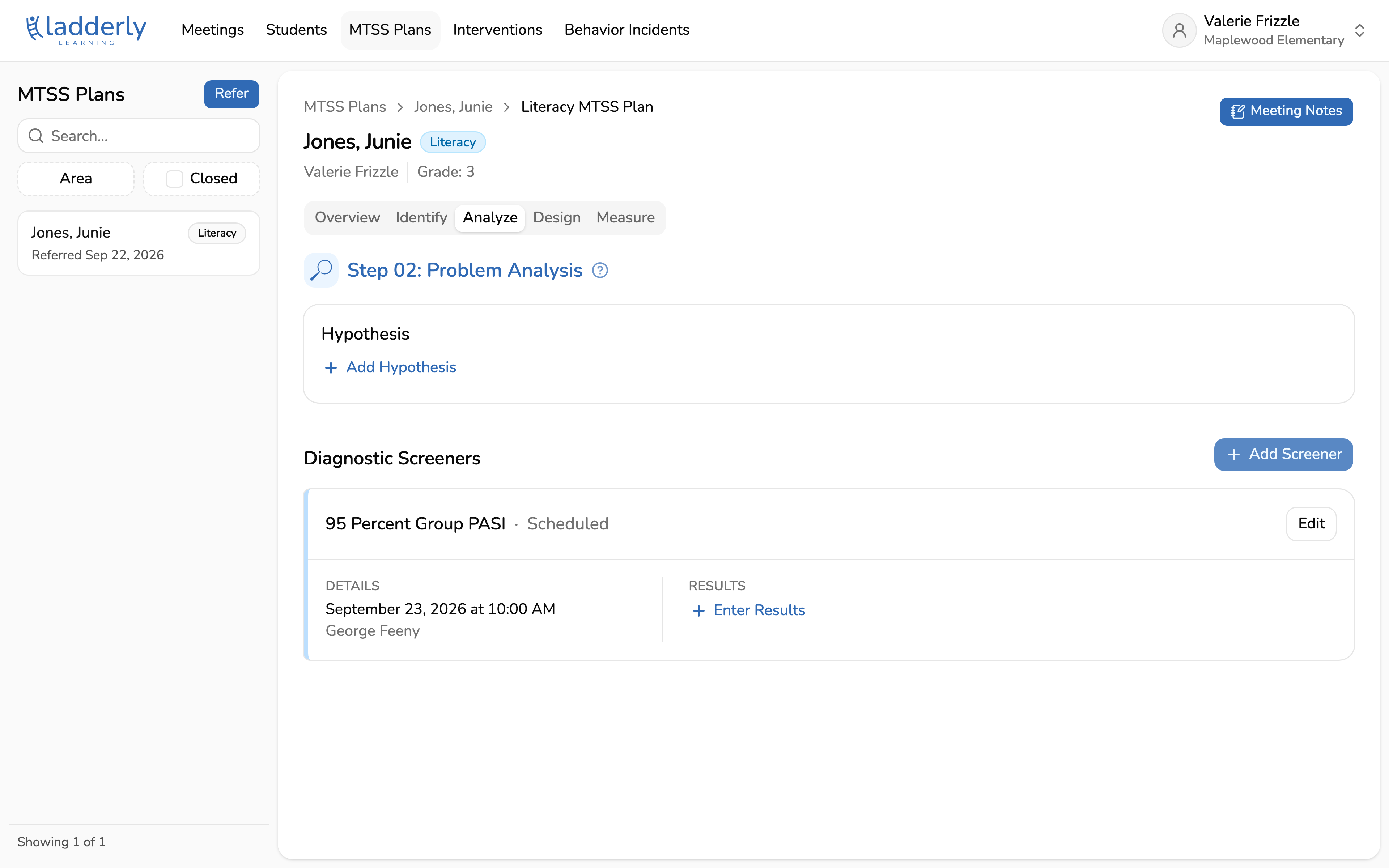
5. The screener is on the calendar
It now shows as Scheduled on the plan's Analyze tab, alongside any other diagnostic data collected for this student.
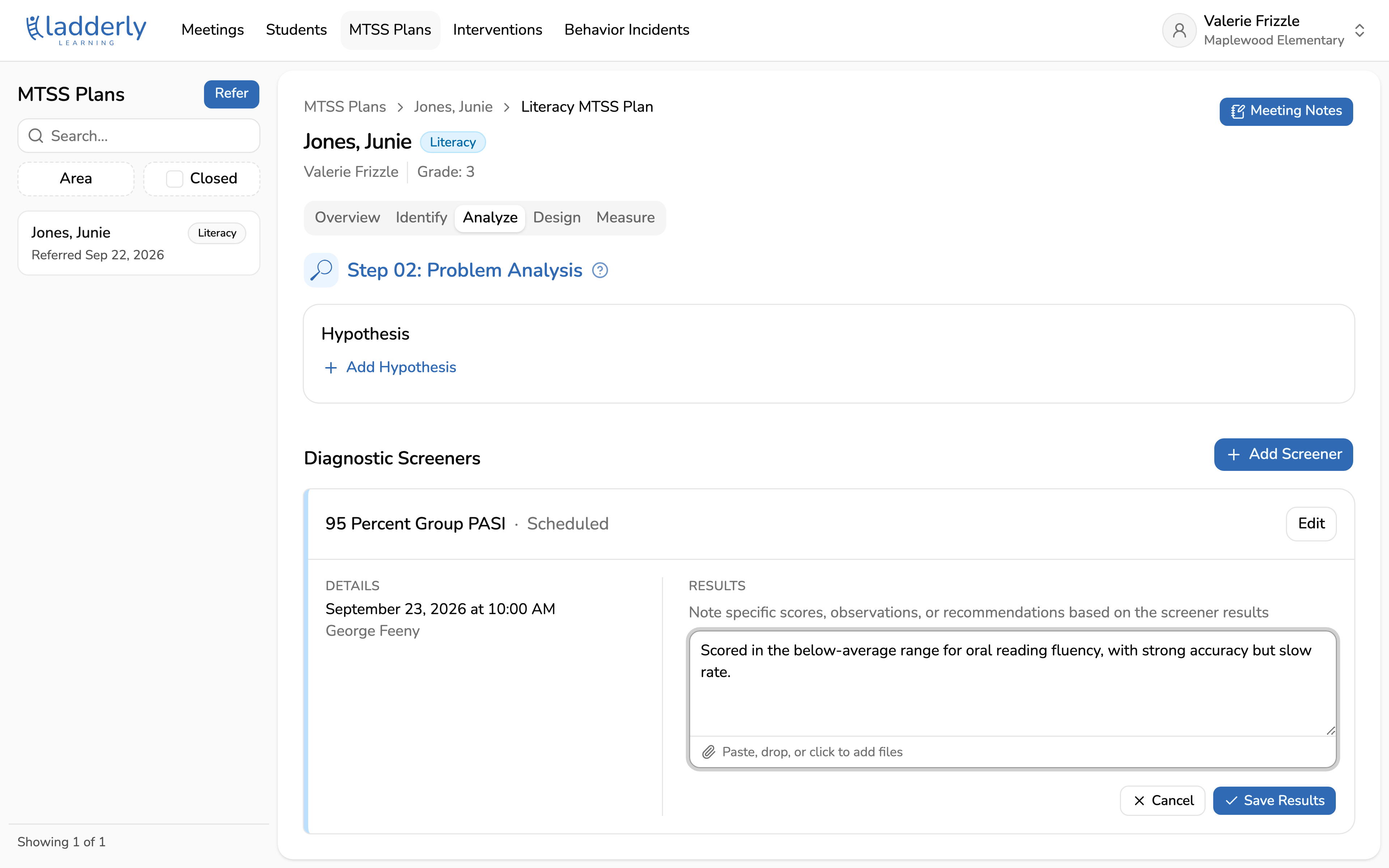
6. Log the results
Once the review happens, record what the screener showed. This is what the team references when deciding on an intervention plan.
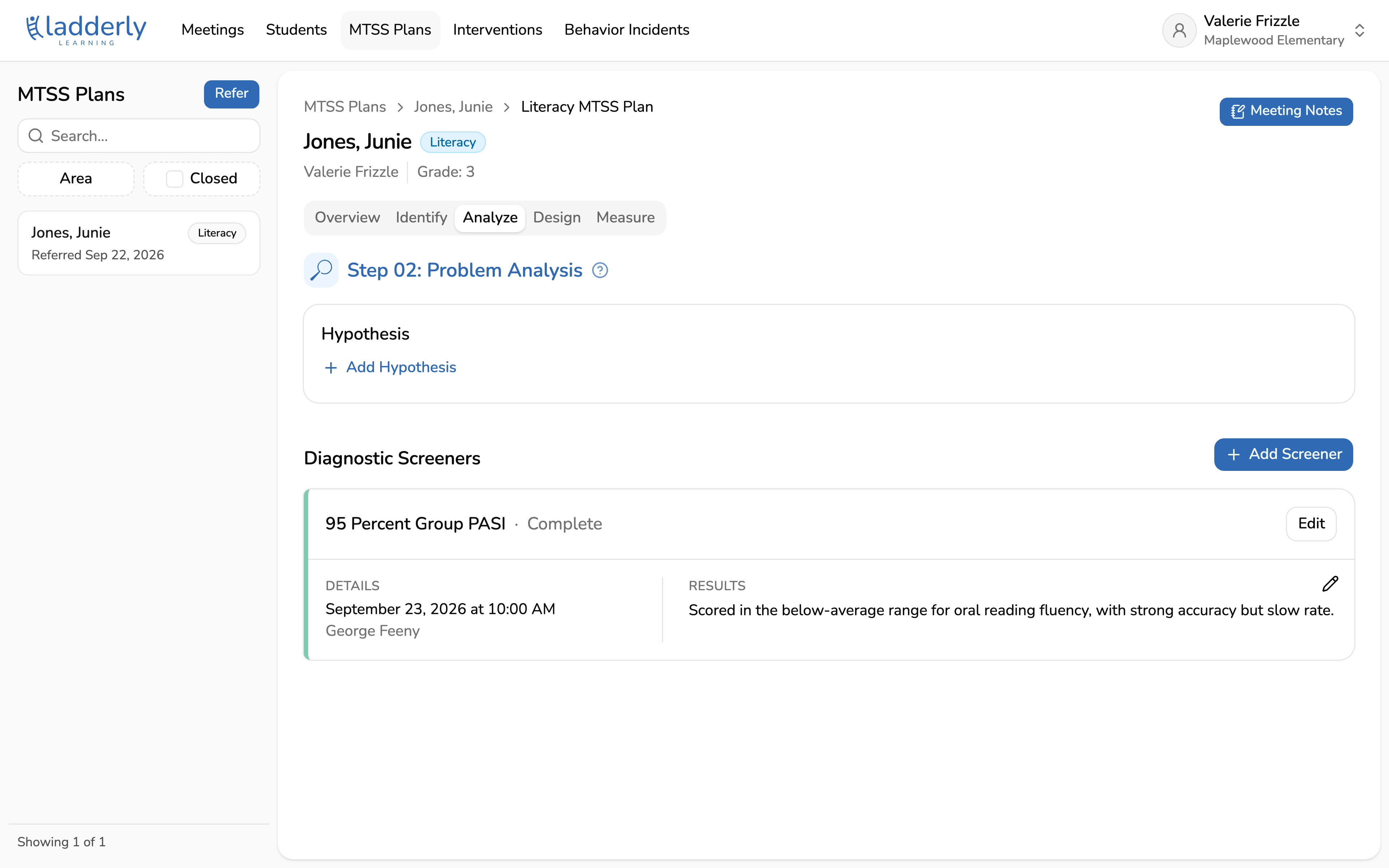
7. Results are saved
The screener now shows its findings directly on the plan, ready to inform the intervention plan.