Fill out your literacy plan
A step-by-step guide for K-3 teachers to add students to their literacy plan and print parent consent letters.
A literacy plan is a reading intervention you run for the students in your class who need extra support. Your school admin or MTSS team creates the plan for you; you add the students who need it, print consent letters for their families, and log progress like any other intervention.
Don't see a literacy plan?
Literacy plans are created by a school admin or MTSS team member. If yours isn't listed, ask one of them to follow the Create literacy plans guide.
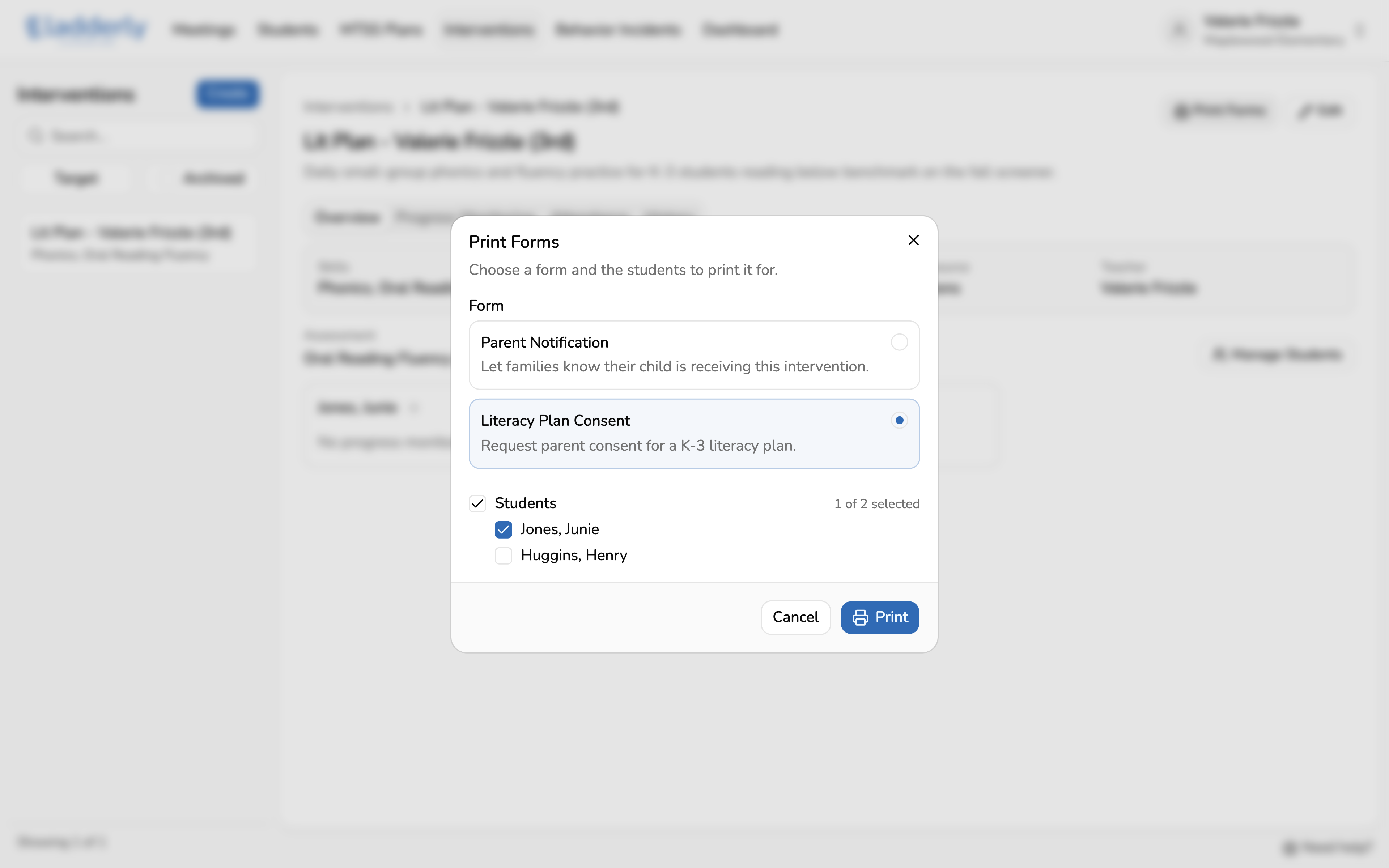
1. Find your literacy plan
Open Interventions in the top navigation. Your literacy plan is listed with your name and grade. Click it to open it.
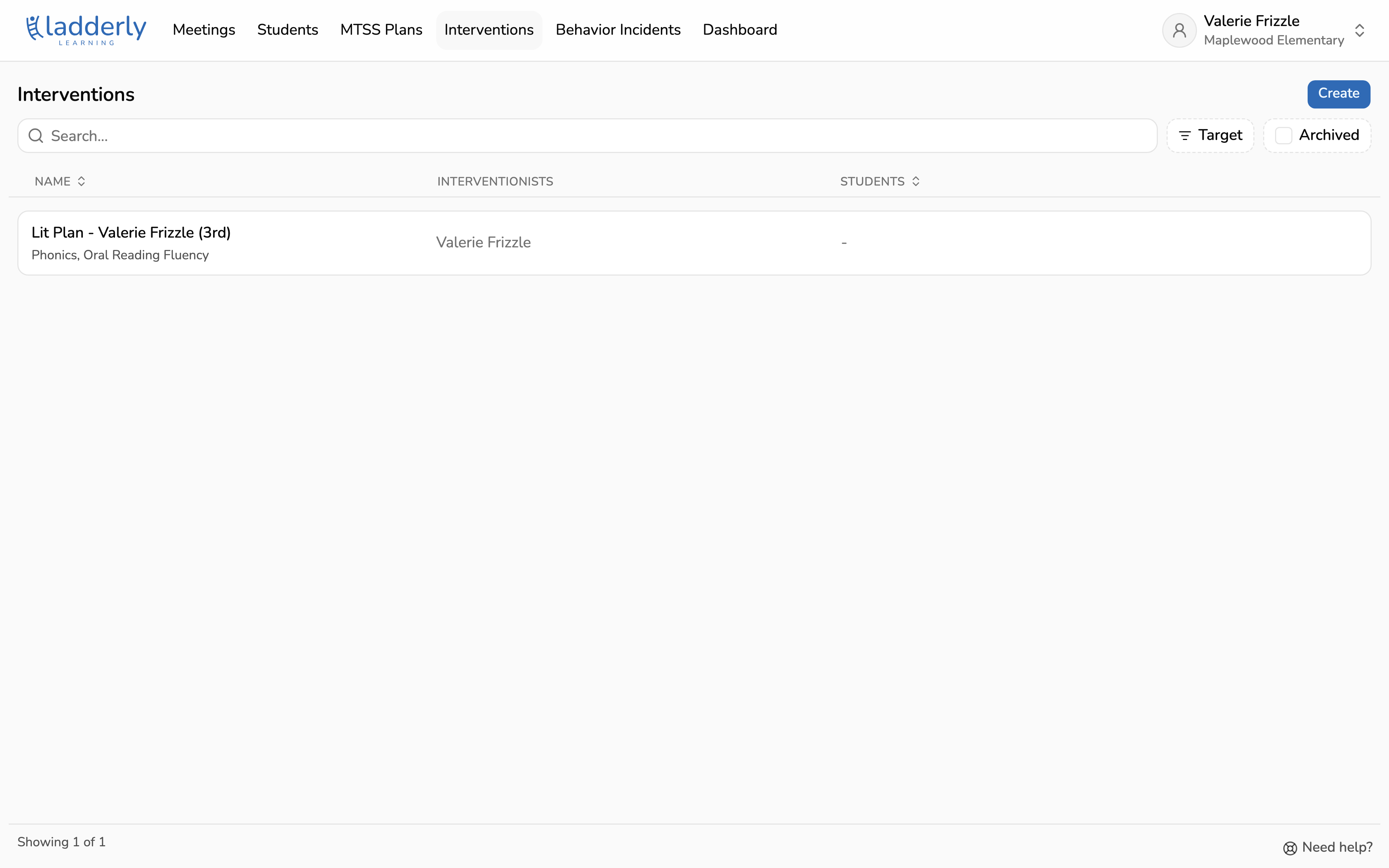
2. Add students and their goals
Add each student in your class who needs a lit plan. Then set a goal for each student so we can track progress on the progress monitoring graphs. Choose Done to save.
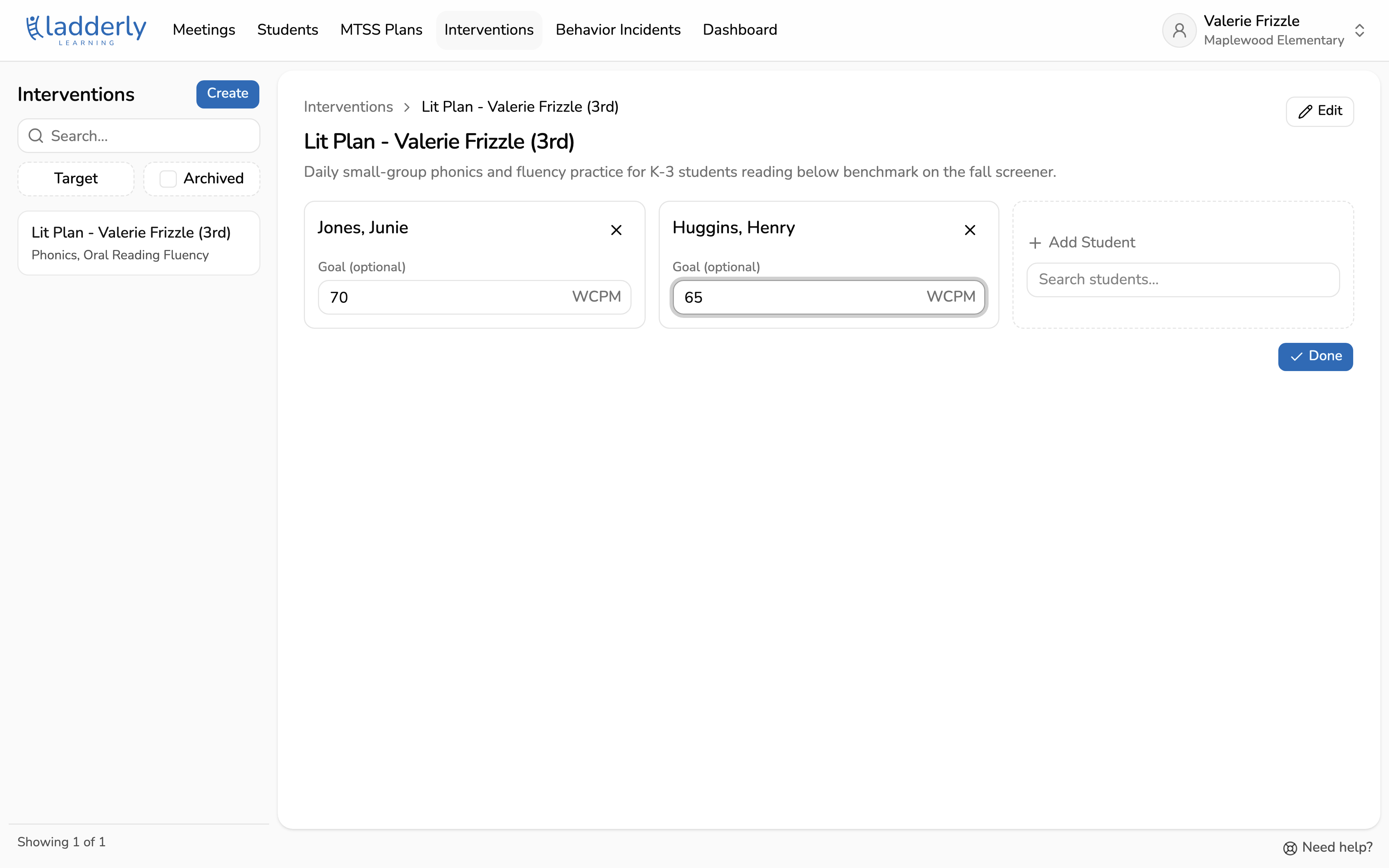
3. Open Print Forms
Once your students are saved, the plan shows a progress card for each of them. Parent consent letters can be printed from the plan itself: choose Print Forms in the top right corner of the page.
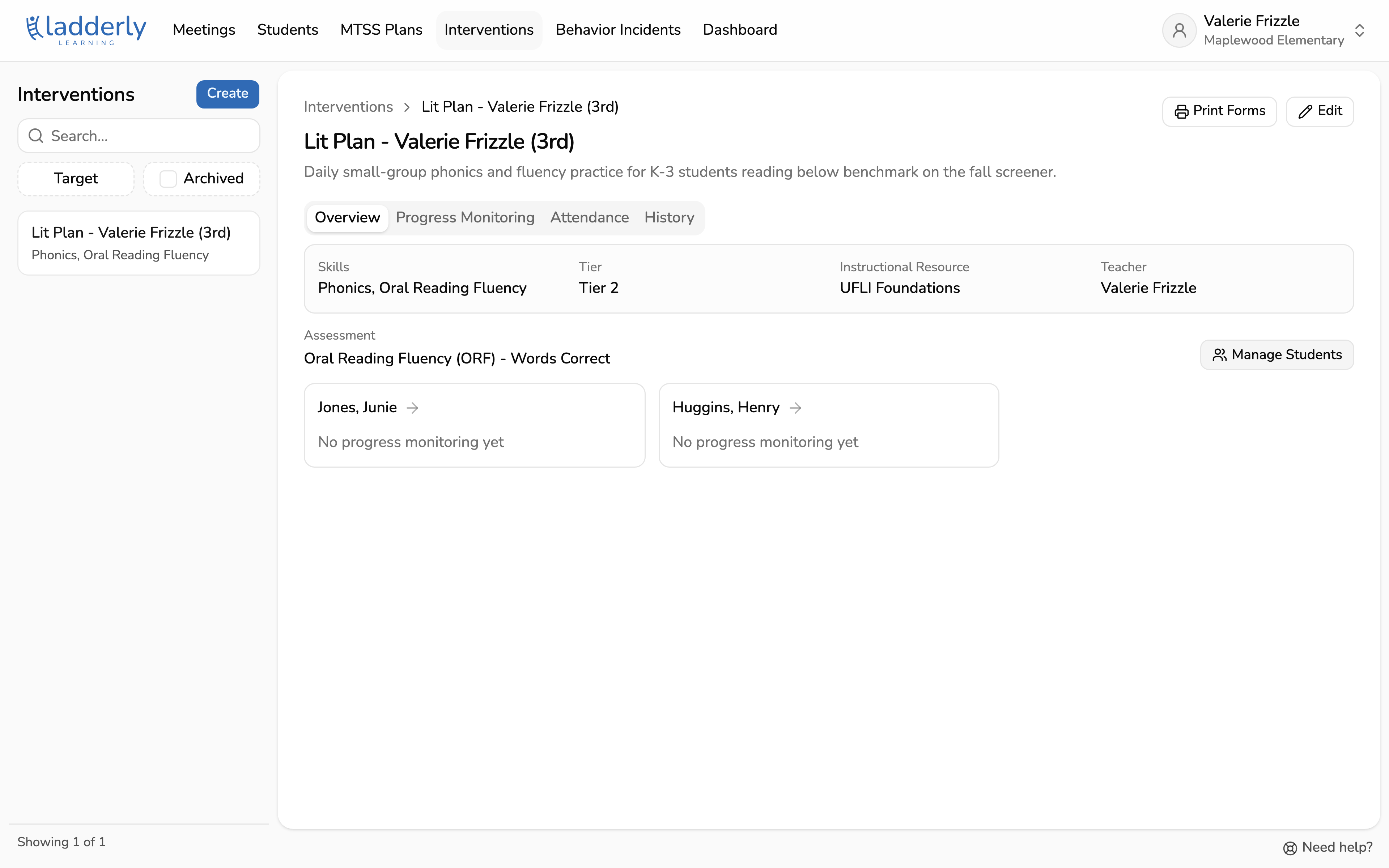
4. Choose Literacy Plan Consent
Under Form, choose Literacy Plan Consent. It's already selected for literacy plans. It prints a letter for each student that explains the plan and asks a parent or guardian to sign.
Parent Notification is a shorter letter that just lets families know their child is receiving the intervention.
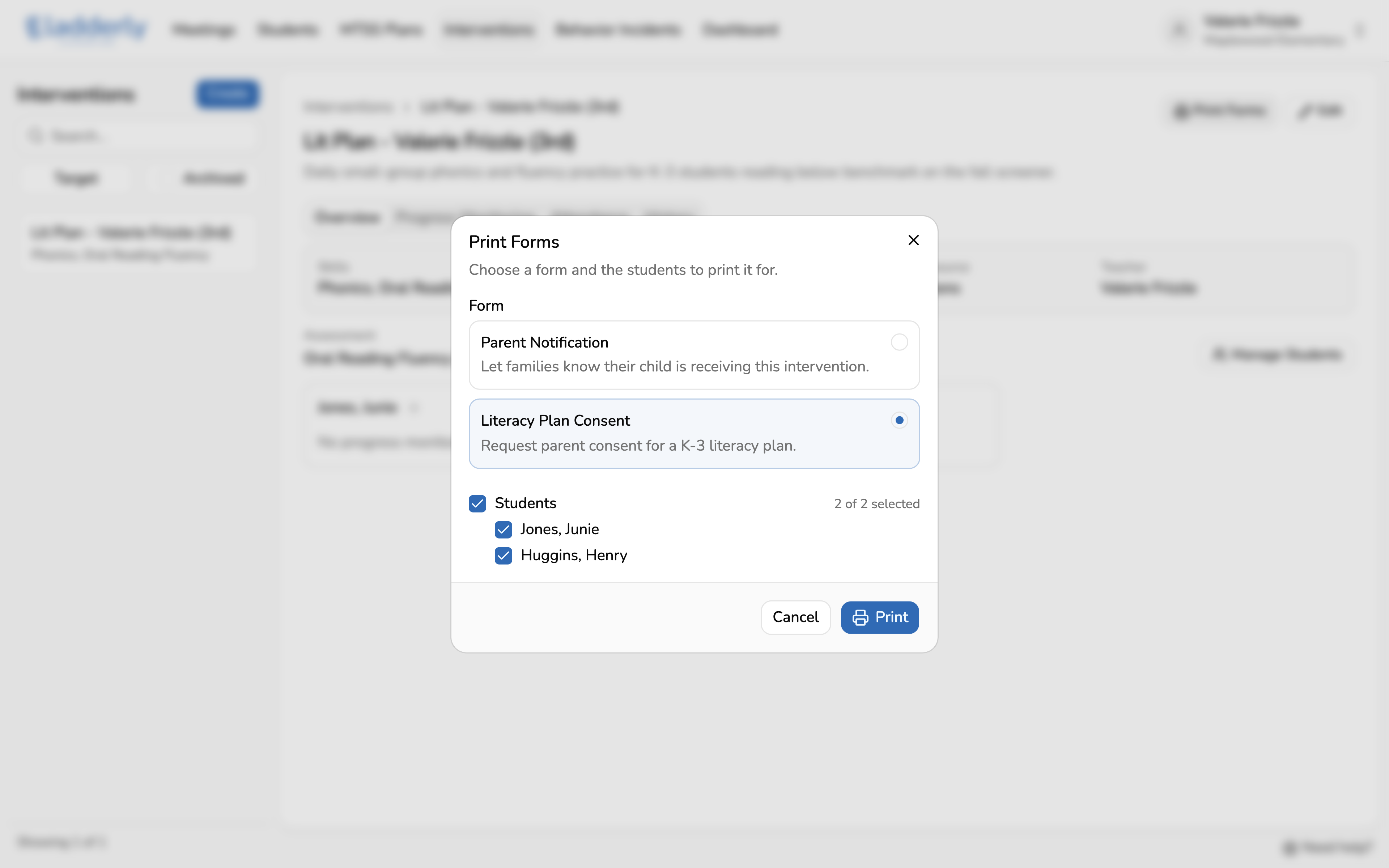
5. Pick students and print
Every student in the plan is selected to start. Uncheck anyone who doesn't need a letter, for example a student whose family has already signed one. Choose Print to open your browser's print window with one letter per student.
What happens next?
A literacy plan works like any other intervention. Use the Progress Monitoring and Attendance tabs to log each session. See the Log progress monitoring guide for details.