Log progress monitoring
A step-by-step guide for interventionists to record progress monitoring scores and check whether students are on track.
Progress monitoring is the short assessment you give on a regular schedule to see whether an intervention is working. Logging each score in Ladderly builds the chart the MTSS team uses to decide what happens next.
Before you start
You can only log progress monitoring for a student who has been added to an intervention. If the intervention you need doesn't exist yet, follow the Create an intervention guide first, then come back here.
1. Find your intervention
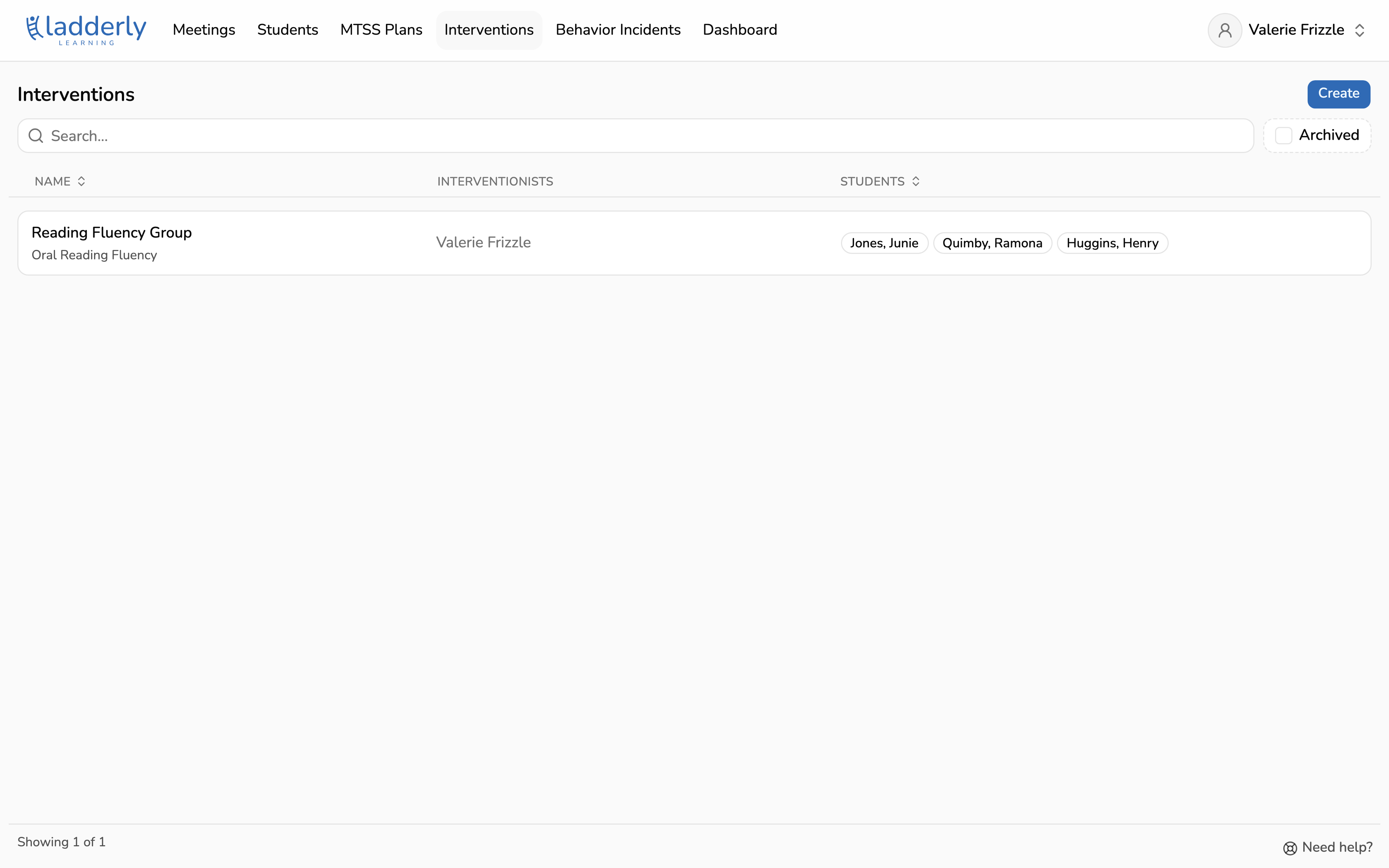
Open Interventions in the top navigation and choose the one you are logging scores for.
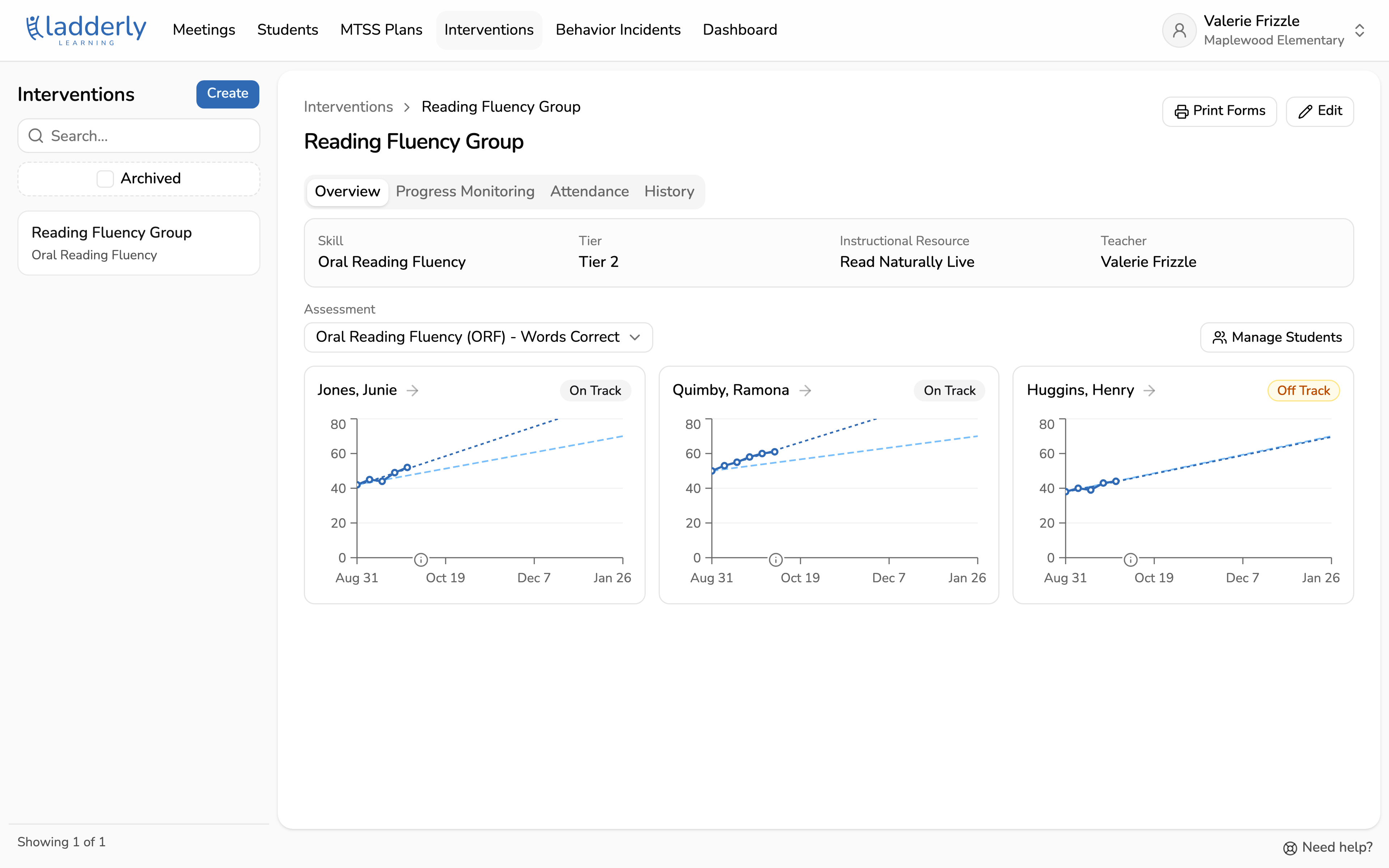
2. Check the overview
The overview shows a progress card for every student in the group, with their scores so far. When the intervention uses more than one assessment, use the Assessment menu to switch which one the cards show.
3. Open the Progress Monitoring tab
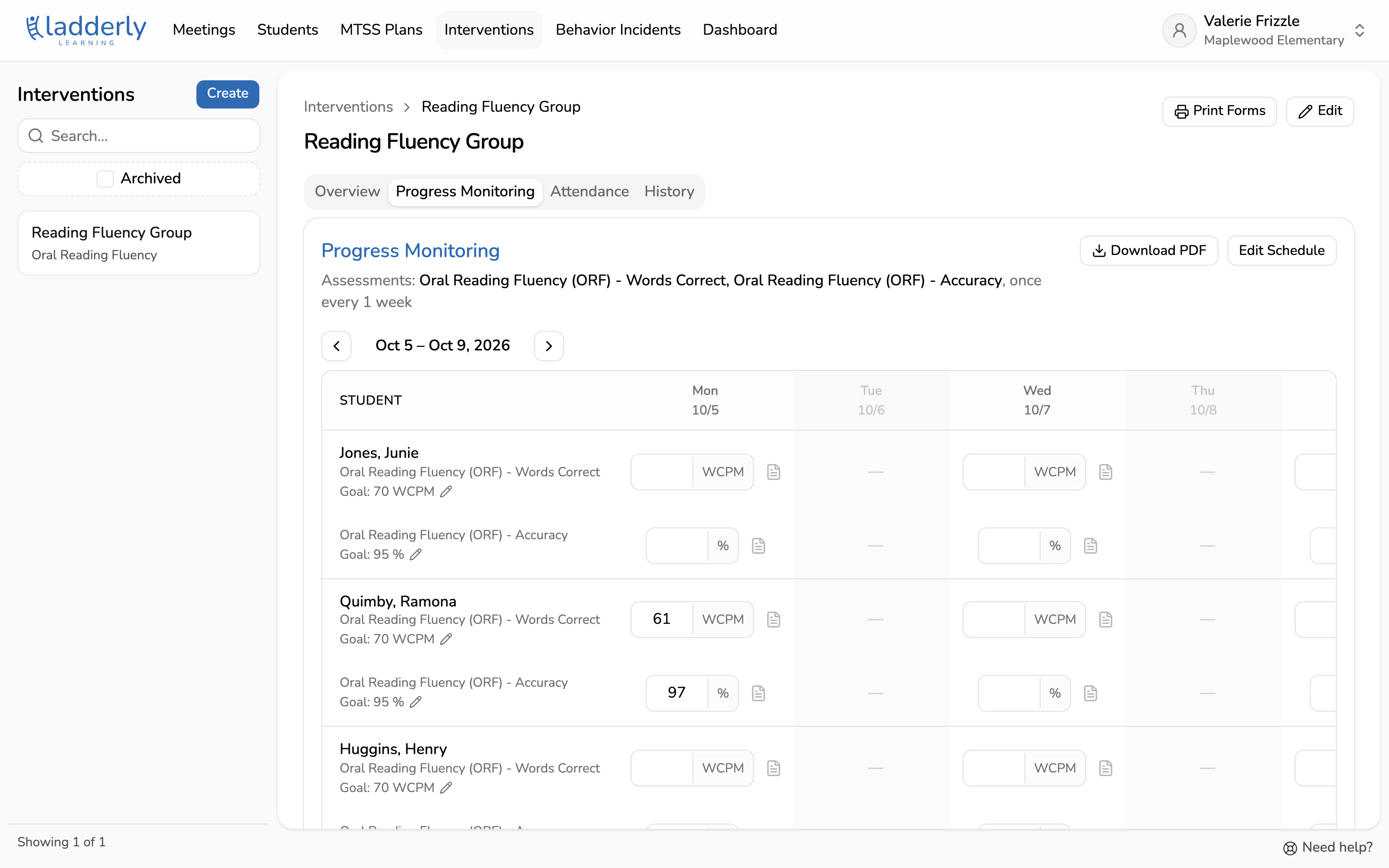
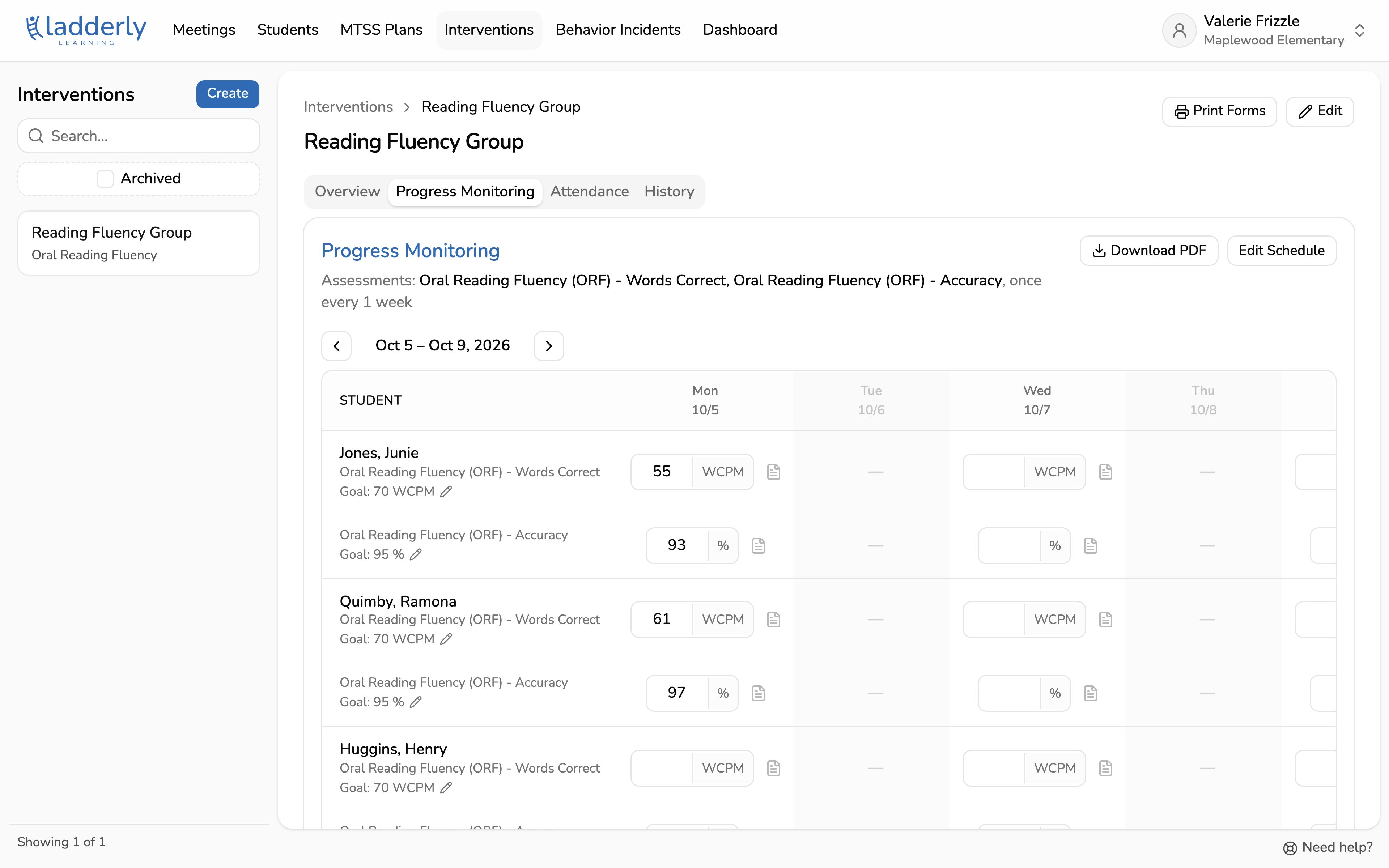
The table shows one week at a time. Days the group meets are open for entry, but you are not expected to progress monitor on each available day. Progress monitor as frequently as you like and just log when you progress monitor.
You can navigate back to previous weeks using the arrows at the top of the table.
Prefer paper?
Choose Download PDF to print the week shown in the table, with every student, their goal, and a box for each session. Fill it in while you work with the group, then enter the scores here afterward.
Coming soon: Snap a photo of your filled-in sheet with your phone, and Ladderly will upload the scores for you!
4. Enter the scores
Type the score in the box for the day you gave the assessment. When the intervention uses more than one assessment, each student has a row for each one, labeled with the assessment's name. Fill in only the assessments you gave that day.
Scores save as soon as you press Enter or click away; there is no separate Save button. To fix a mistake, type over it or delete the score in the box.
5. Add a note if something stood out
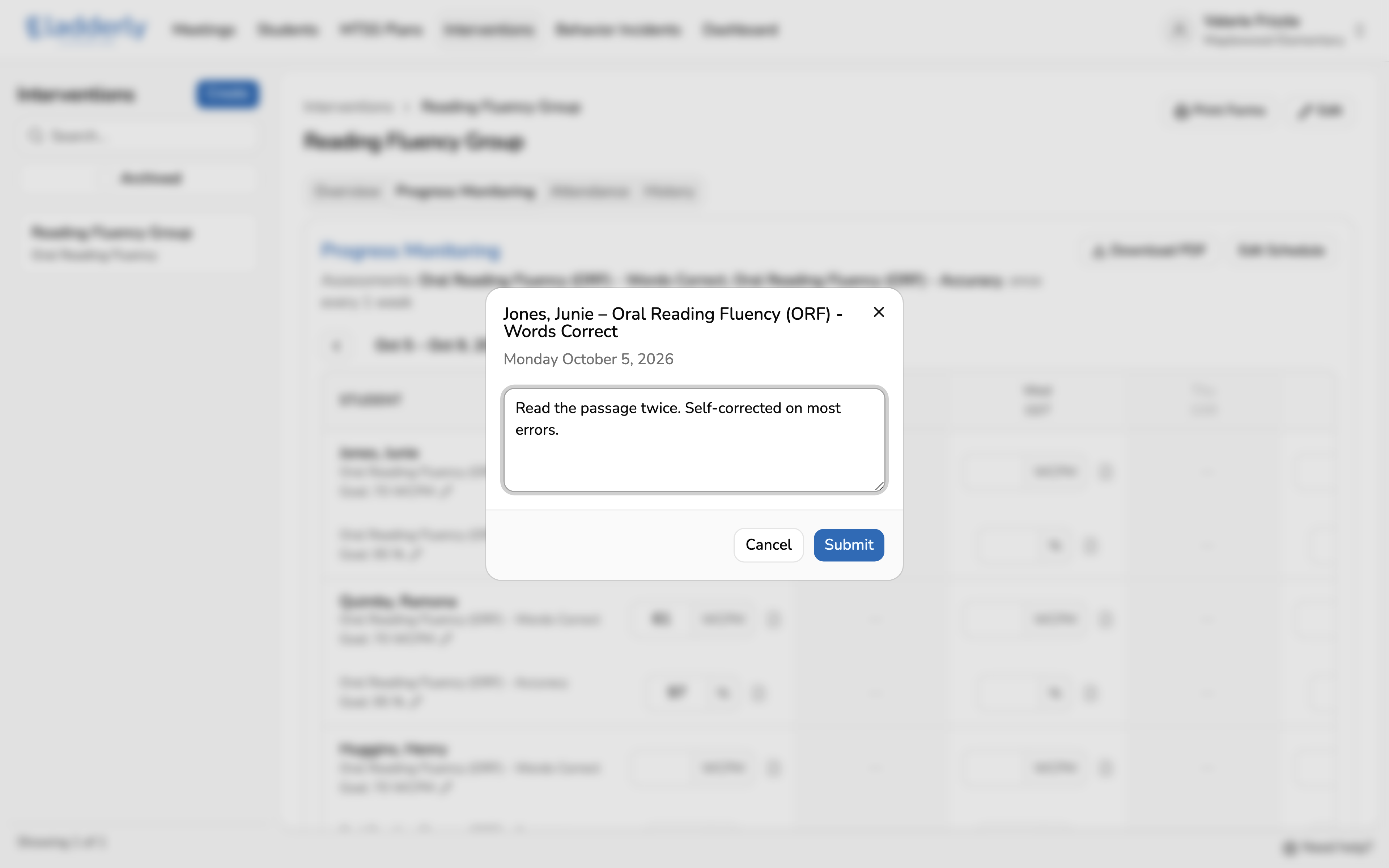
If you want to record a note next to a student's score, choose the note icon next to a score to record anything that affects it, like an absence or a rough morning. Notes show up when the MTSS team reviews the data.
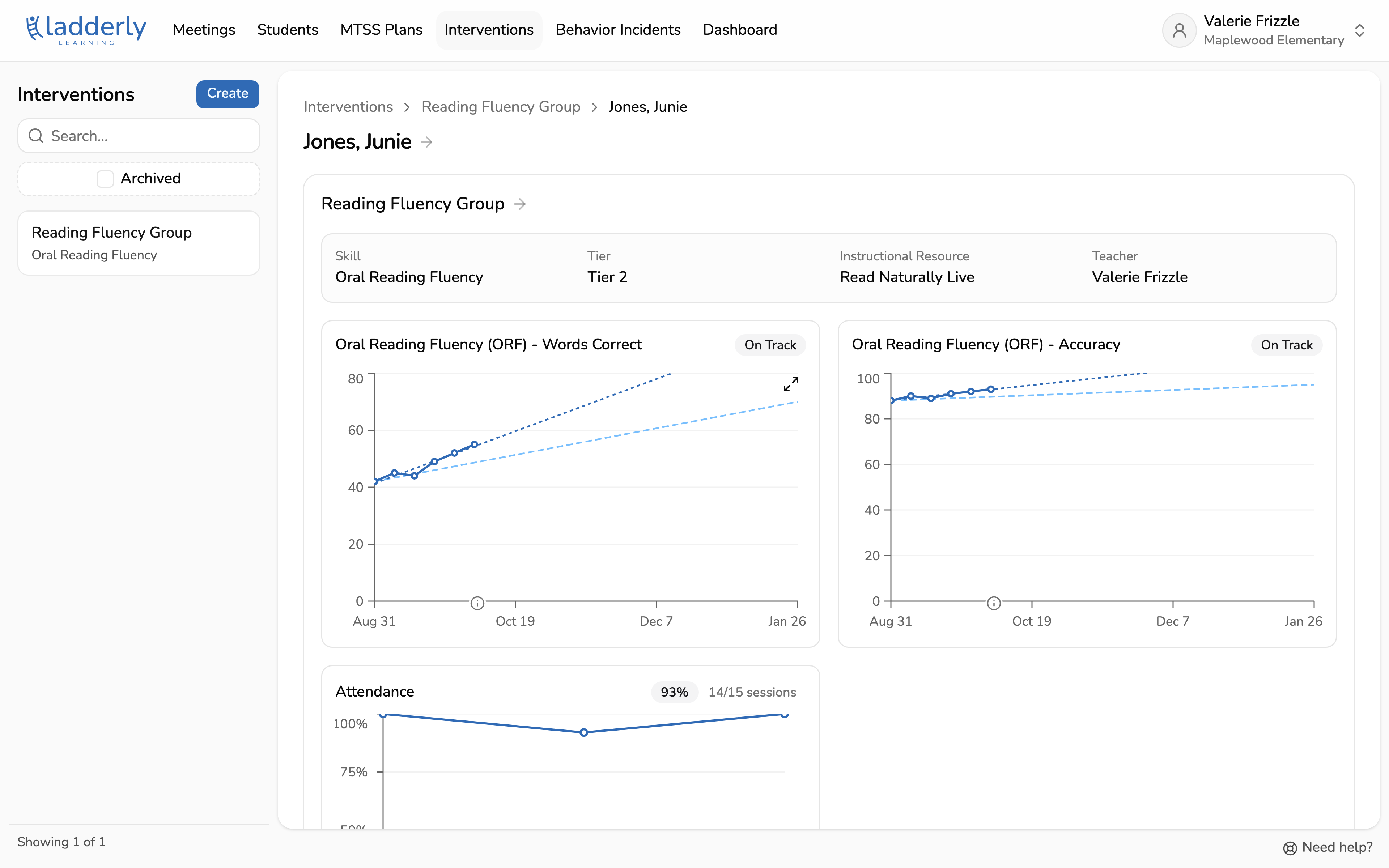
6. See how the student is doing
Go back to the Overview tab and choose a student's name. Their page shows a chart for every assessment in the intervention, along with their attendance, so you can see at a glance whether they're on track to reach each goal by the end date.