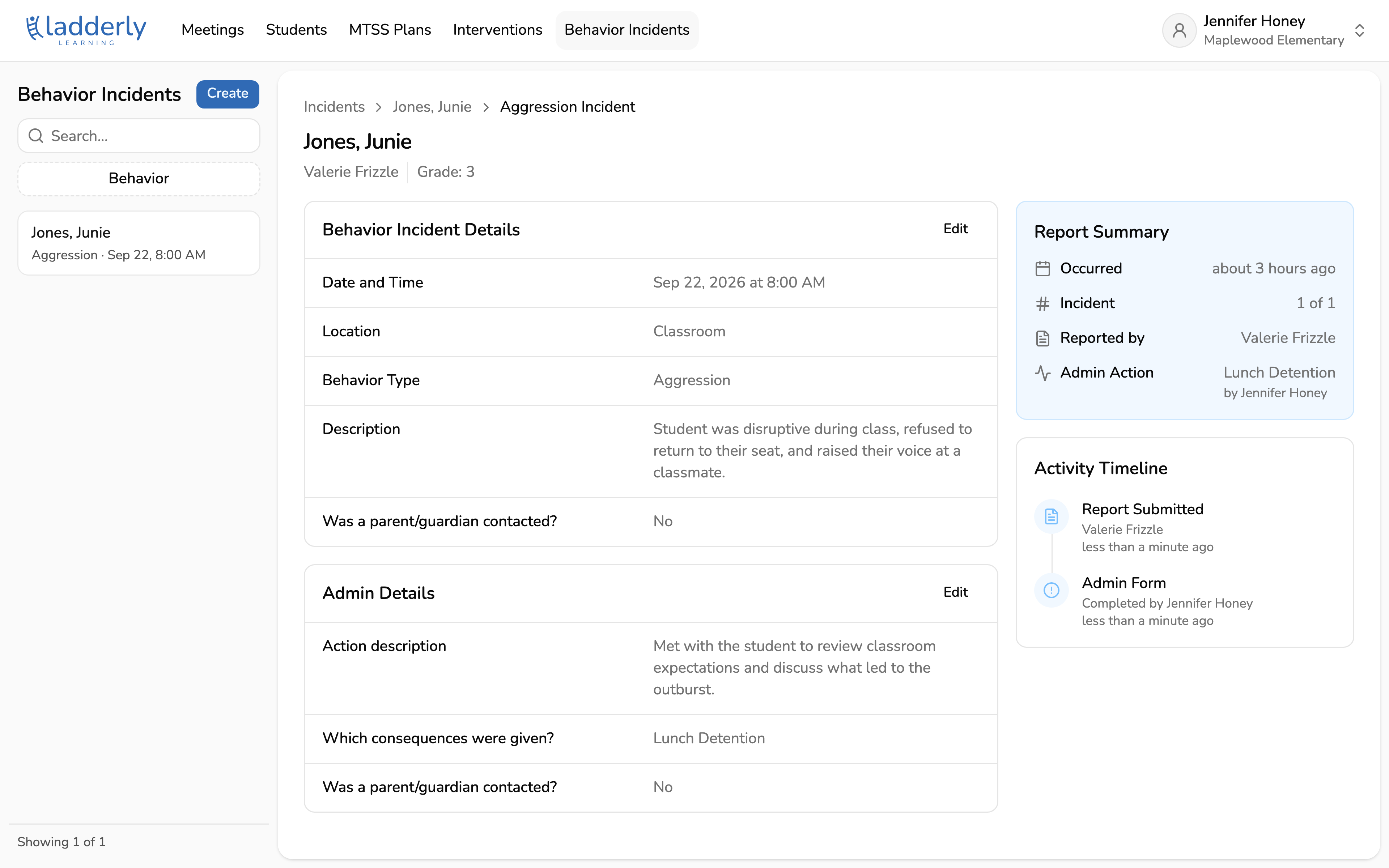
Report a behavior incident
A step-by-step guide for teachers and school admins to report and resolve a behavior incident.
Any staff member can log a behavior incident. Marking it as needing admin action routes it to school admins, who see it on their home page and complete a follow-up record.
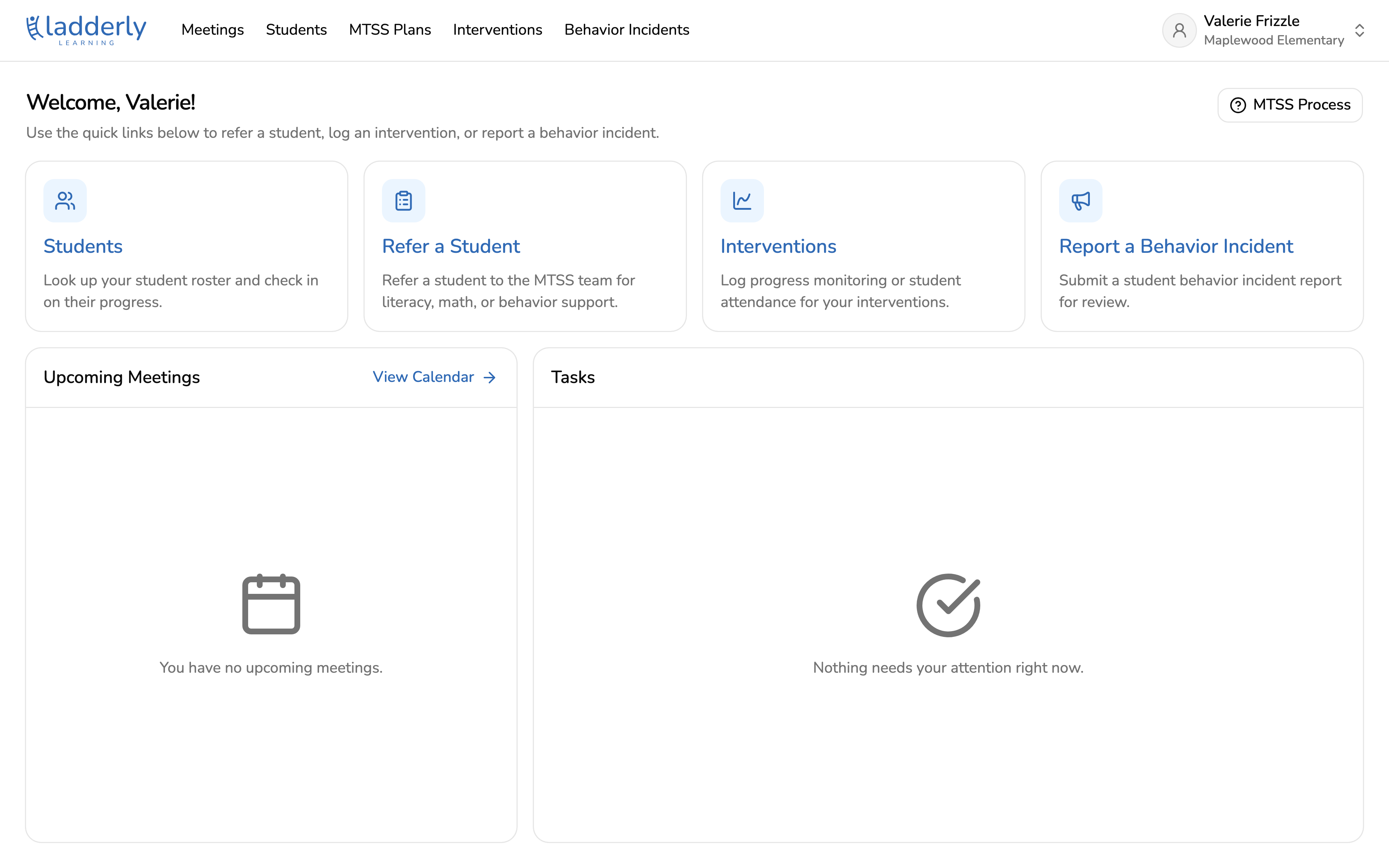
1. Start from your home page
Choose Report a Behavior Incident from the quick links, or Behavior Incidents in the top navigation.
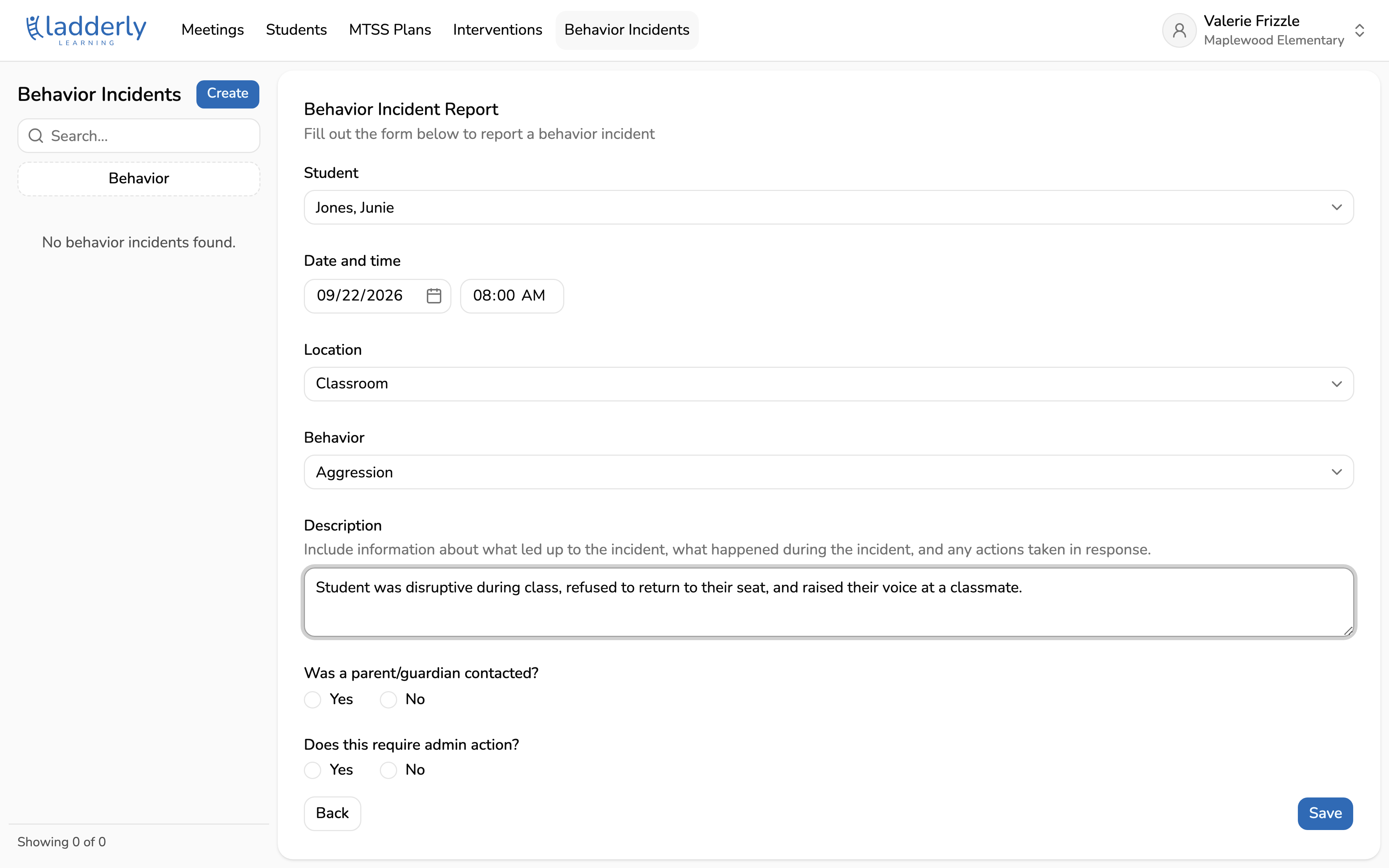
2. Describe what happened
Name the student, when and where it happened, and what you observed. This record is the first thing an admin sees if the incident needs their attention.
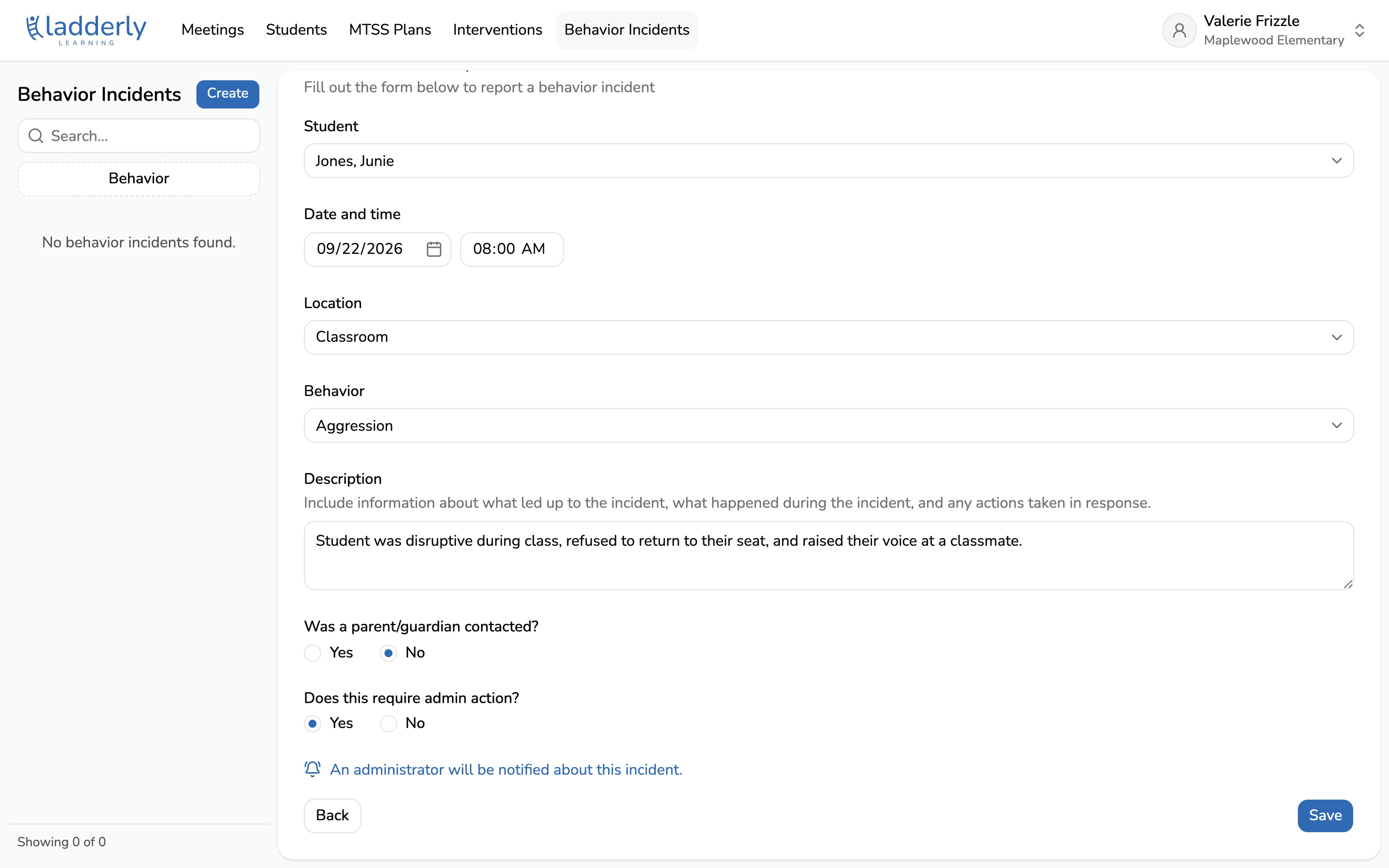
3. Flag it for admin action
Answer whether a guardian was already contacted and whether this needs an administrator's follow-up. Flagging it here is what notifies your school's admins.
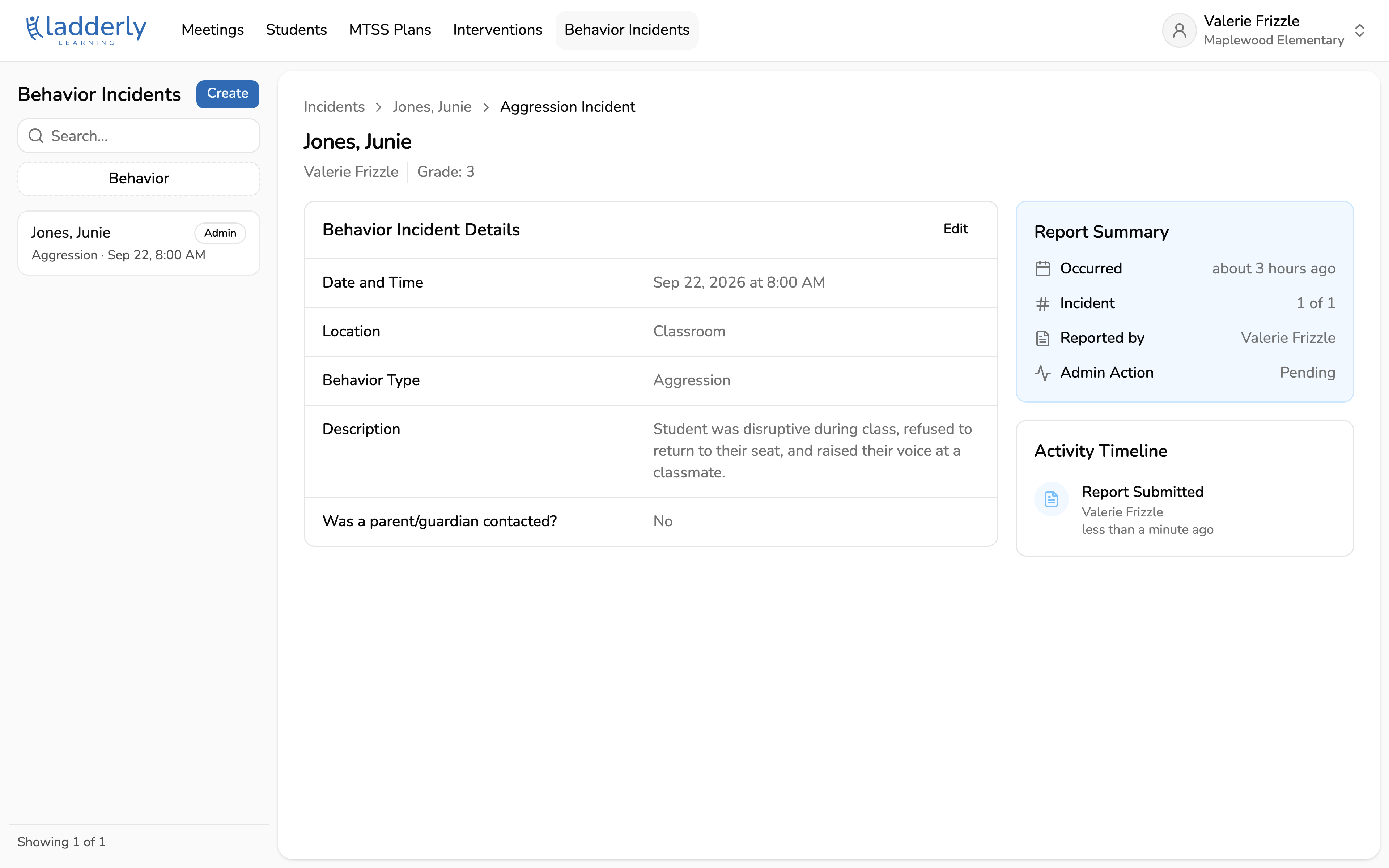
4. The incident is logged
The report is saved and, since it needed admin action, an email goes out to the school's admins.
5. Find it on the admin home page
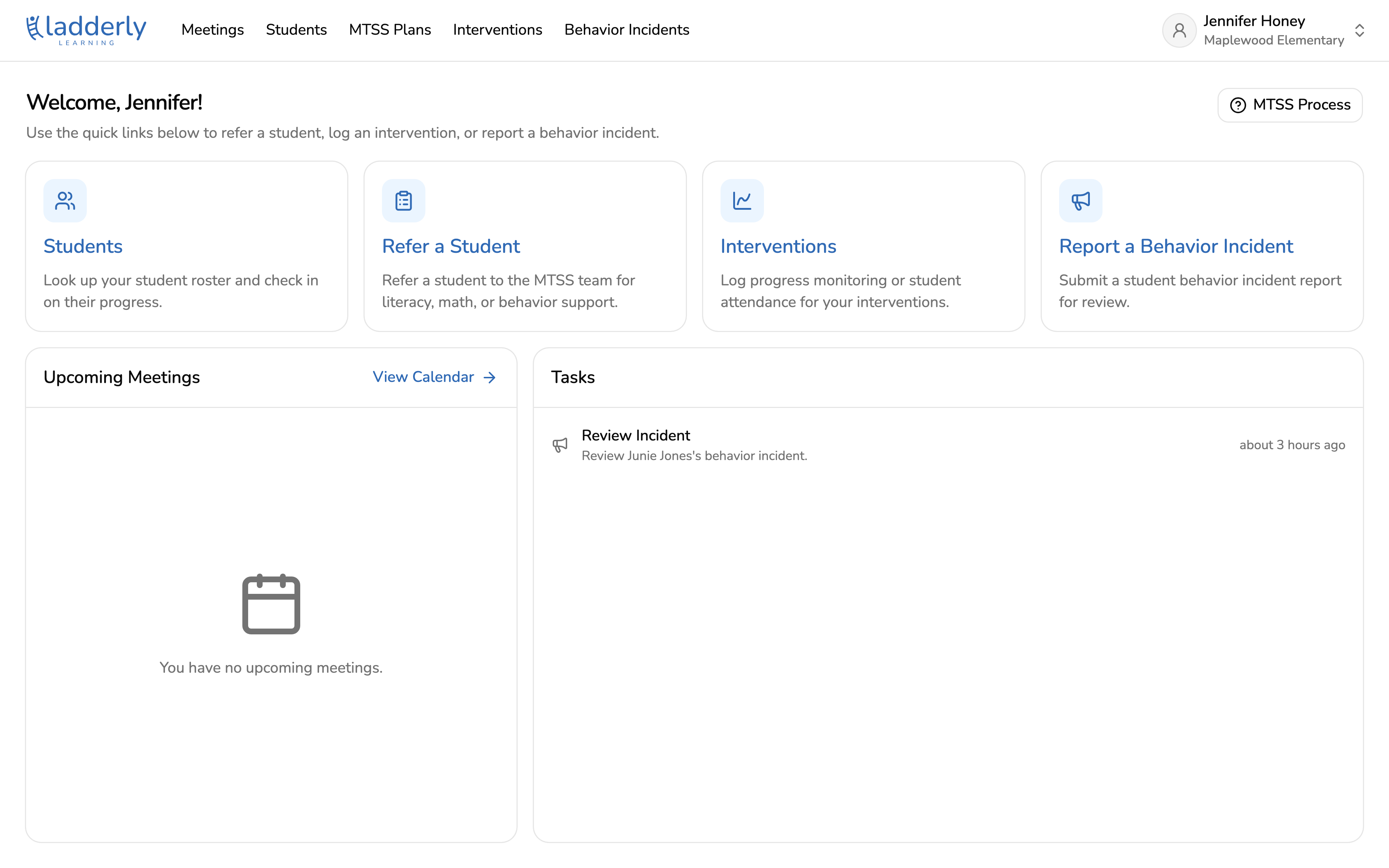
The same incident shows up under Tasks on all school admins' home page.
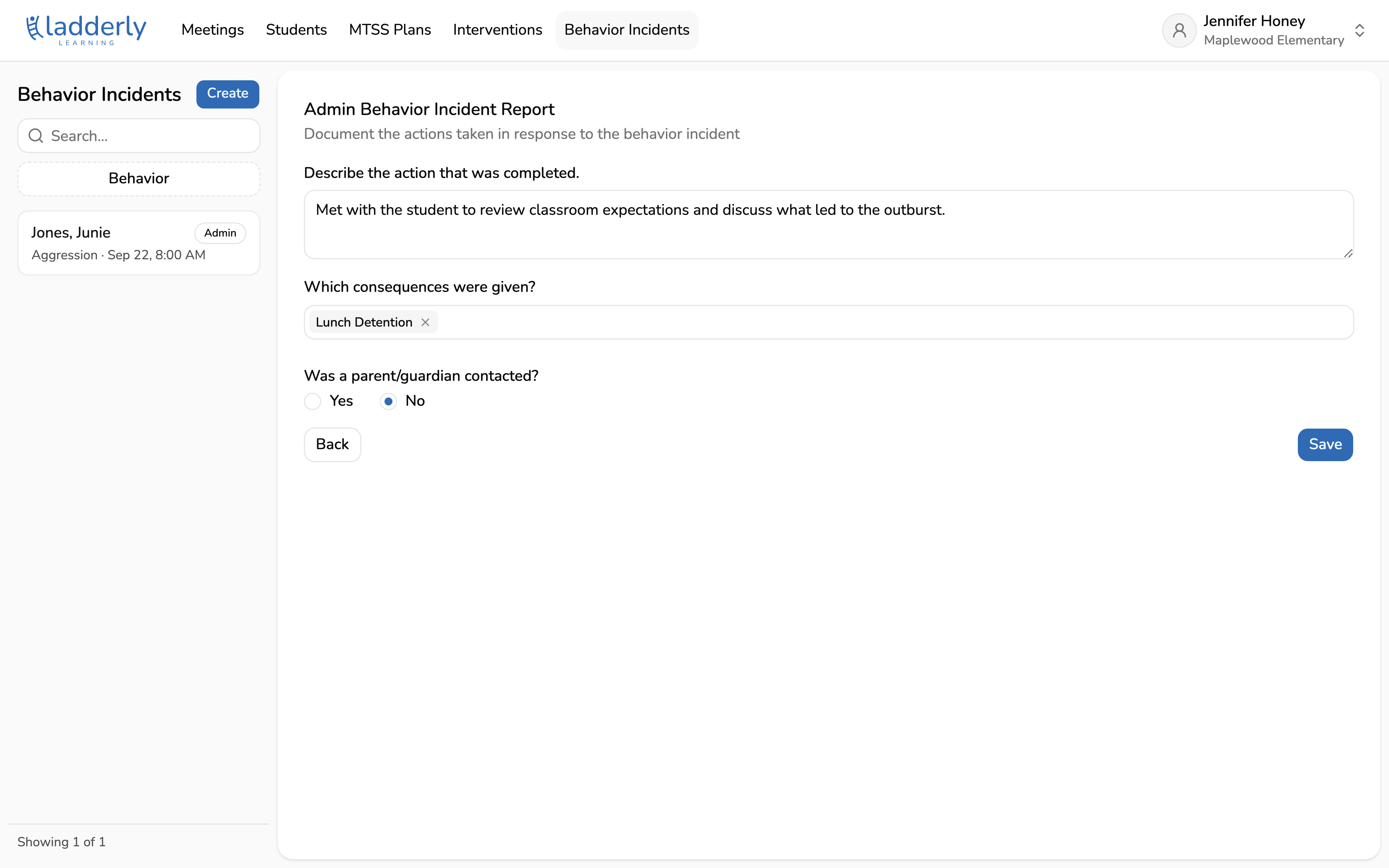
6. Record the admin follow-up
Describe what was done, any consequences given, and whether a guardian was contacted. This closes the loop the teacher's report started.
7. The incident is resolved
The admin's follow-up now shows on the incident record alongside the original report.